
GitHub Actions CI/CD: A Complete Guide to Automating Software Builds, Tests and Deployments
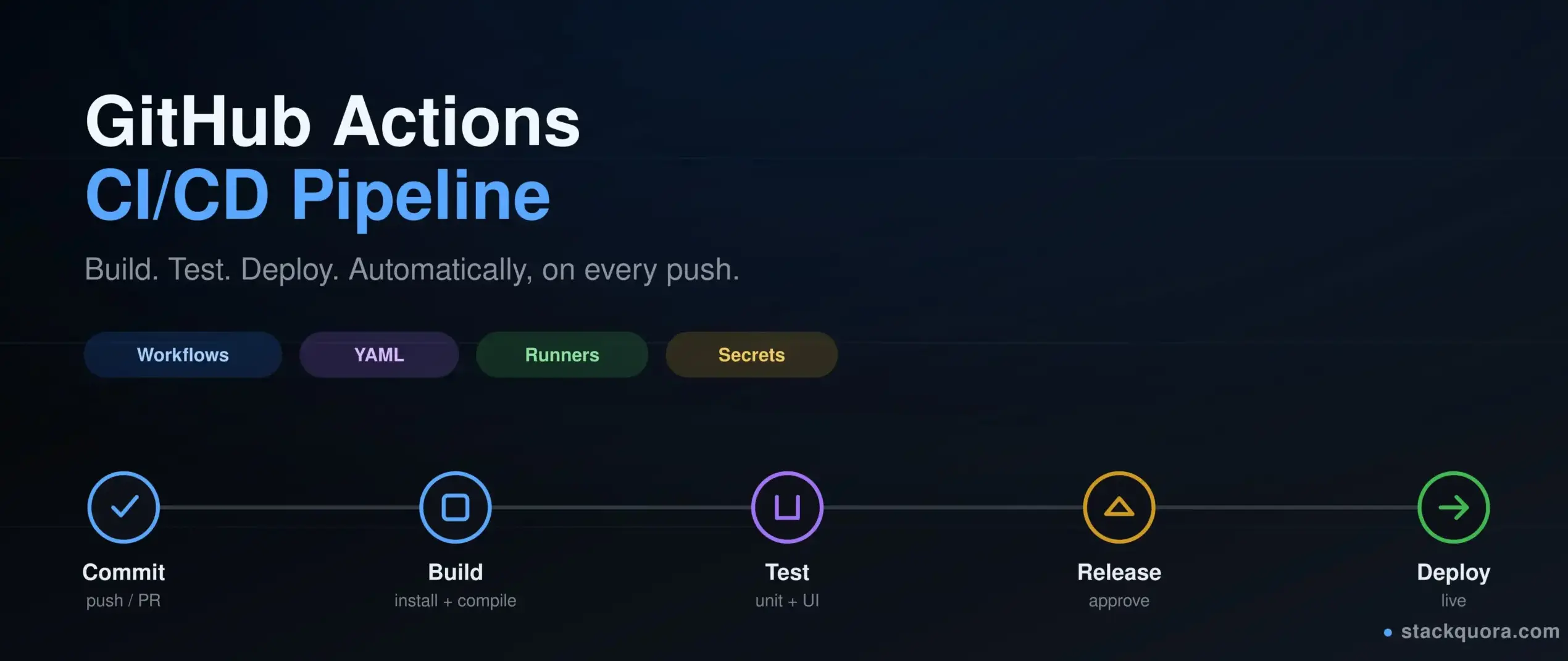
Most teams do not lose time writing code. They lose it in the gap between writing code and shipping it. Someone forgets to run the tests. Someone deploys from a laptop. A build works on one machine and fails on another. GitHub Actions closes that gap.
GitHub Actions is a built-in automation engine inside GitHub. It watches your repository, and when something happens, such as a push or a pull request, it runs the steps you defined. Build the app. Run the tests. Scan the code. Ship it to a server. All of it happens automatically, in a clean machine, every single time.
This guide walks you through GitHub Actions CI/CD from zero. You will learn what a workflow is, how the YAML file is structured, how jobs and steps run, how to run Selenium and Playwright tests in the cloud, how to store secrets safely, and how to deploy. Every example here is short enough to copy into your own repository today.
What Is GitHub Actions?
GitHub Actions is an automation platform that lives inside GitHub itself. You do not install a separate server. You do not manage a plugin list. You add a YAML file to your repository, and GitHub runs it for you on a fresh virtual machine.
Think of it as a very reliable teammate who never forgets. Every time you push code, this teammate pulls the latest version, installs the dependencies, runs the build, runs the tests, and reports back with a green tick or a red cross.
People mostly use GitHub Actions for continuous integration and continuous deployment, but it is not limited to that. Teams also use it to:
- Run unit, API and UI tests on every pull request
- Check code style and run security scans
- Build Docker images and push them to a registry
- Publish npm packages or Python libraries
- Deploy websites to AWS, Azure, Vercel, Netlify or a plain Linux server
- Close stale issues, label pull requests and send Slack alerts
- Run scheduled jobs, such as a nightly regression suite
The key idea: GitHub Actions automation is event driven. Something happens in the repository, and your code runs in response. That is the whole model.
What Is CI/CD?
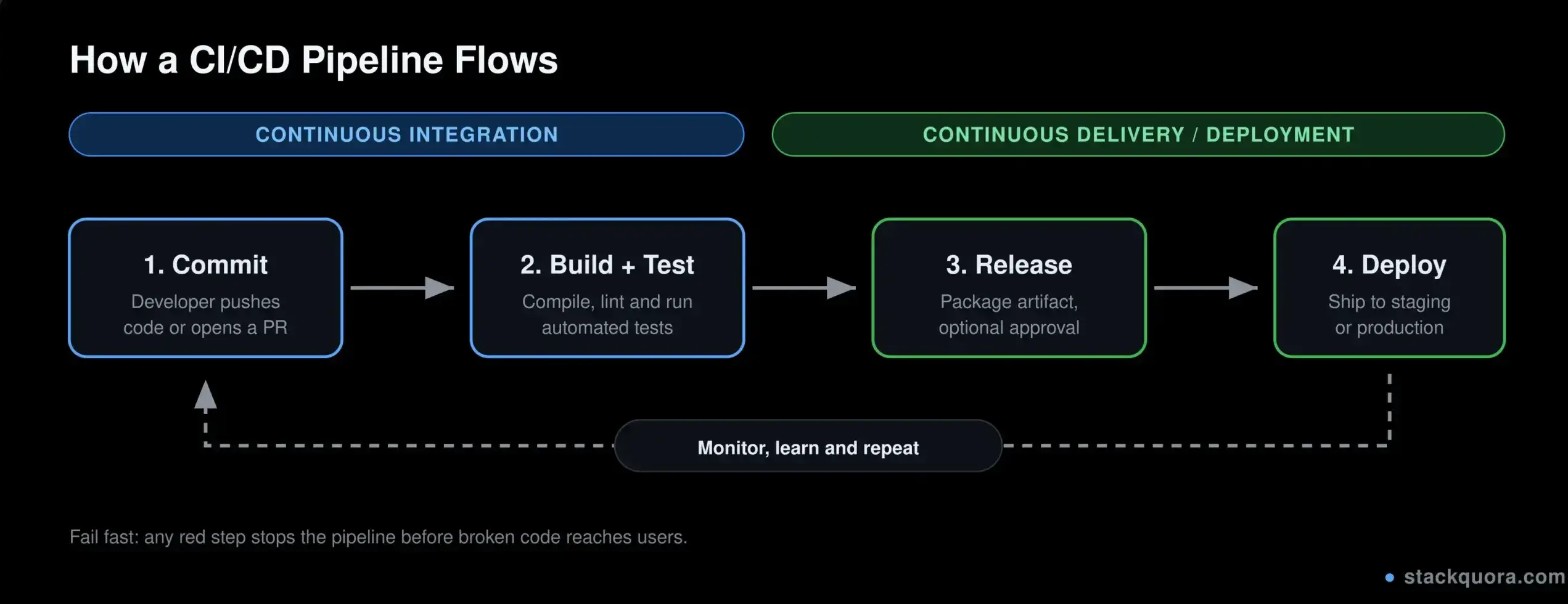
CI/CD stands for continuous integration and continuous delivery or continuous deployment. It is a way of working where small changes reach users quickly and safely, instead of piling up for weeks.
Before you write a single line of YAML, it helps to be clear about the three terms, because people mix them up constantly.
Continuous Integration
Continuous integration means every developer merges their work into the shared branch often, usually many times a day. Each merge triggers an automatic build and an automatic test run.
The goal is simple. Find the broken thing within minutes of it breaking, while the change is small and the author still remembers what they did. A bug found ten minutes after a commit costs almost nothing. The same bug found three weeks later costs a day.
Continuous Delivery
Continuous delivery goes one step further. After the tests pass, the pipeline packages the application and puts it in a ready-to-release state. Releasing to production is still a human decision, usually a button click or an approval.
This is the sweet spot for most teams. You are always ready to ship, but a person decides when.
Continuous Deployment
Continuous deployment removes the button. If every check passes, the change goes to production automatically. No human gate.
This needs strong tests, good monitoring and a fast rollback plan. Many mature teams do it. Many teams should not, at least not yet.
How GitHub Actions Works
The mechanics are easier than they look. Here is the full loop.
- You create a file inside
.github/workflows/in your repository, for exampleci.yml. - You describe an event that should start the workflow, such as a push to
main. - The event happens. GitHub sees it.
- GitHub picks a runner, which is a fresh virtual machine, and hands it your workflow.
- The runner executes your jobs and steps, one command at a time.
- Logs stream live into the Actions tab. You get a green tick or a red cross.
Two things surprise beginners here.
First, the runner starts empty and clean. It does not have your code until you check it out. It does not have your dependencies until you install them. That is deliberate. A clean machine means “works on my machine” stops being an excuse.
Second, the runner is destroyed after the run. Anything you wrote to disk is gone unless you saved it as an artifact or pushed it somewhere. Nothing carries over to the next run except caches and artifacts that you explicitly asked for.
GitHub Actions Workflow Explained
A GitHub Actions workflow is one YAML file that describes one automated process. A repository can have many workflows. It is common to have three or four:
ci.ymlfor build and test on every pull requestdeploy.ymlfor shipping to staging or productionnightly.ymlfor a slow regression suite that runs at 2 AMrelease.ymlfor publishing a package when you tag a version
Every workflow file must live in .github/workflows/. The folder name matters. If you put the file anywhere else, nothing happens and GitHub will not tell you why.
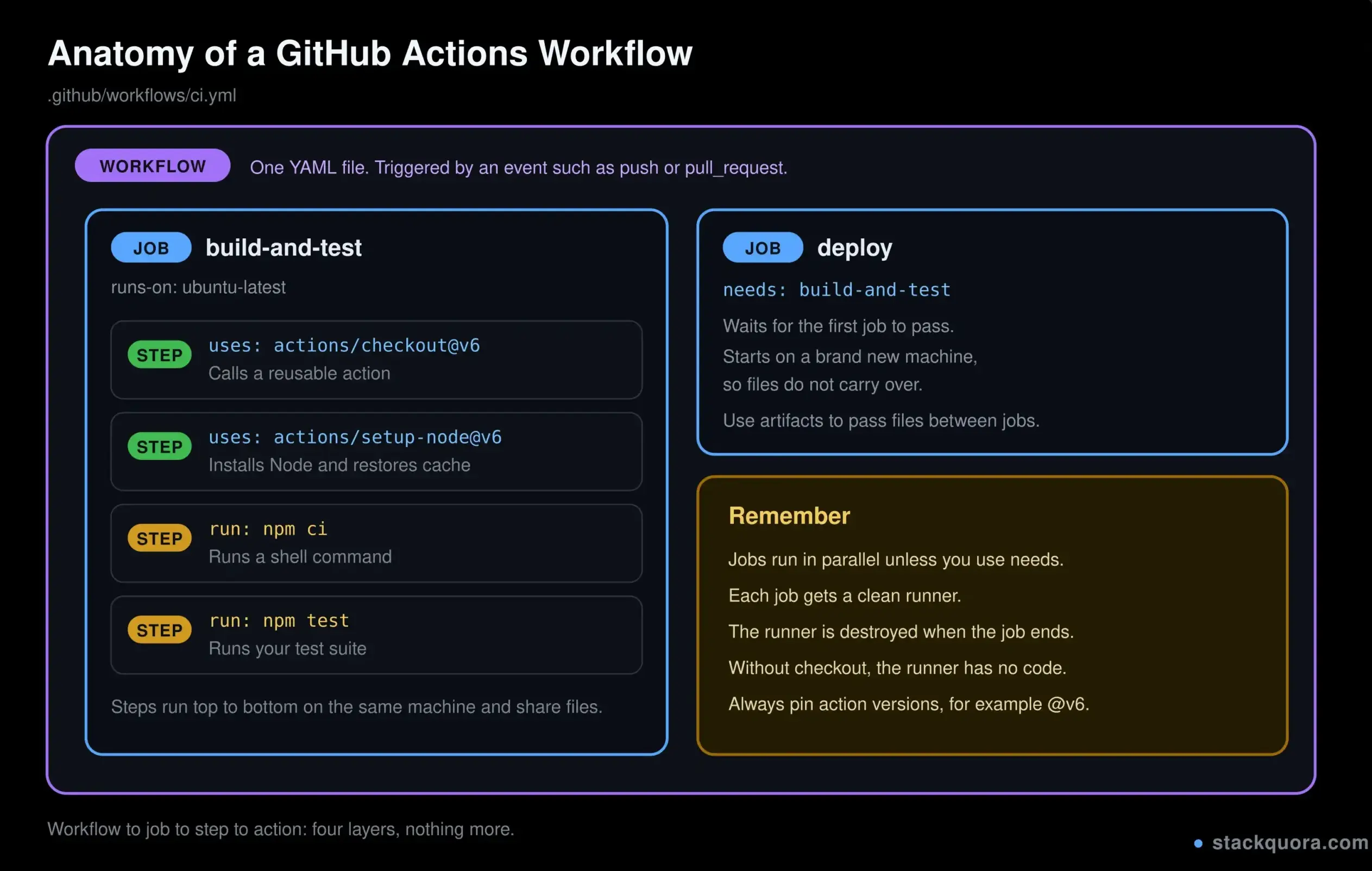
A workflow is made of four building blocks, stacked inside each other:
- Workflow — the whole automated process, defined in one YAML file
- Job — a group of steps that run together on one runner
- Step — a single unit of work inside a job
- Action — a reusable package of code that a step can call
So: a workflow contains jobs, a job contains steps, and a step can either run a shell command or use an action.
Understanding GitHub Actions YAML
GitHub Actions YAML is the language you write workflows in. YAML is a plain text format that uses indentation to show structure. No brackets, no semicolons. Just spaces.
Here is a minimal workflow that prints a message:
name: Hello Pipeline

on: push

jobs:
  say-hello:
    runs-on: ubuntu-latest
    steps:
      - name: Print a message
        run: echo "The pipeline is running"
Read it from the top:
nameis the label shown in the Actions tabonis the event that triggers the runjobsholds one or more jobssay-hellois the job ID, a name you chooseruns-onpicks the operating system for the runnerstepslists what actually happensrunexecutes a shell command
The YAML Rules That Break Most Beginners
More broken pipelines come from YAML formatting than from anything else. Learn these five rules and you will avoid most of the pain.
- Use spaces, never tabs. A tab character will fail the parse. Set your editor to insert two spaces.
- Indentation is meaning. Two spaces deeper means “inside the thing above”. Get it wrong and your step ends up in the wrong job.
- Quote anything strange. Strings with
:,#,{}or a leading*should be wrapped in quotes. onis a real keyword, not a boolean. Some editors try to turnon:intotrue:. If that happens, write"on":or fix the editor setting.- Multi-line commands need a pipe. Use
run: |and then put each command on its own indented line.
A multi-line example:
- name: Install and build
  run: |
    npm ci
    npm run lint
    npm run build
Tip: before you push, paste your file into any online YAML validator. It takes five seconds and saves a failed run.
GitHub Actions Events and Triggers
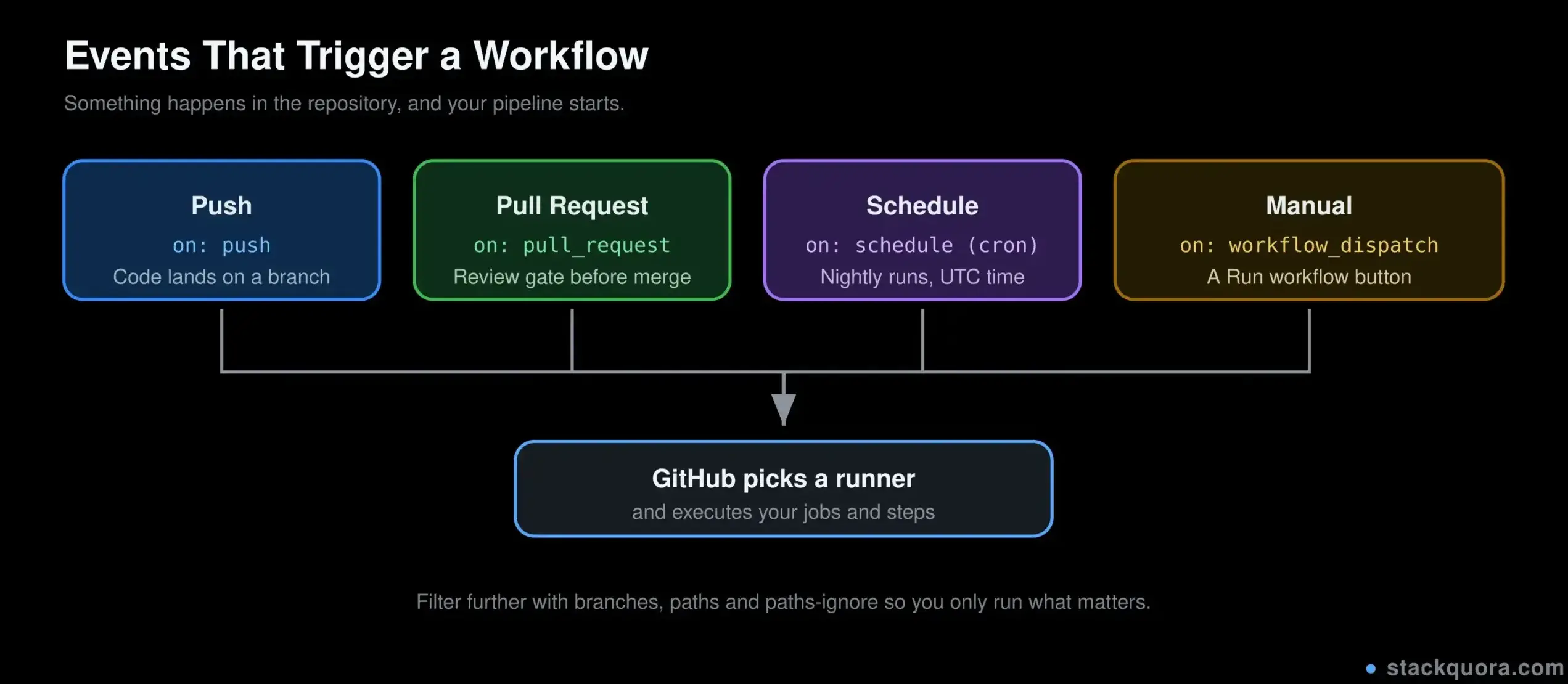
The on key decides when your pipeline starts. This is where a lot of the real power sits, because you can be very specific.
Run on a push to certain branches:
on:
  push:
    branches: [main, develop]
Run on pull requests, ignoring documentation changes:
on:
  pull_request:
    branches: [main]
    paths-ignore:
      - "docs/**"
      - "**.md"
Run on a schedule (cron, always in UTC):
on:
  schedule:
    - cron: "30 20 * * *"
That example runs at 20:30 UTC daily, which is 2:00 AM IST. Remember the UTC part. Many teams have been confused by a “nightly” job that ran in the afternoon.
Run manually with a button, and take an input:
on:
  workflow_dispatch:
    inputs:
      environment:
        description: "Where to deploy"
        required: true
        default: "staging"
        type: choice
        options: [staging, production]
workflow_dispatch adds a “Run workflow” button in the Actions tab. It is the easiest way to give testers and product folks a safe, controlled trigger.
Other events worth knowing:
release— when you publish a releaseissuesandissue_comment— for automation botsworkflow_run— start a workflow after another one finishesworkflow_call— let other workflows reuse this one
You can also combine several events in one file. A common pattern is: run on pull requests, on pushes to main, and on a manual trigger.
Jobs, Steps and Actions Explained
GitHub Actions jobs run in parallel by default. Two jobs in the same workflow will start at the same time on two separate machines. That is great for speed, and it surprises people who expect top-to-bottom order.
If job B needs job A to finish first, say so with needs:
jobs:
  build:
    runs-on: ubuntu-latest
    steps:
      - run: echo "Building"

  test:
    needs: build
    runs-on: ubuntu-latest
    steps:
      - run: echo "Testing after build"
Important: jobs do not share a file system. The test job above starts on a brand new machine with nothing on it. If build produced a dist/ folder that test needs, you must upload it as an artifact in build and download it in test.
GitHub Actions steps run in order, top to bottom, on the same machine. They do share the file system, and they share environment variables you set at job level. If a step fails, the remaining steps are skipped unless you add if: always() or continue-on-error: true.
A step does one of two things:
run:executes a shell command, exactly like typing it in a terminaluses:calls a prebuilt action from GitHub or from the Marketplace
Actions are the reusable part. Instead of writing twenty lines of shell to install Node.js and set up a cache, you call one action:
- uses: actions/setup-node@v6
  with:
    node-version: "22"
    cache: "npm"
The @v6 part is the version tag. Always pin a version. If you write actions/setup-node with no version, or you point at a moving branch, your pipeline can change behaviour overnight without you touching anything.
One live example of why this matters: GitHub moved its runners to a newer Node.js runtime through 2026, and older action majors stopped working on updated runners. Teams that pinned to current majors upgraded in one pull request. Teams that never looked at versions woke up to red pipelines. Check the action’s GitHub page once in a while and keep majors current.
How to Create Your First GitHub Actions Workflow
Let us build a real GitHub Actions workflow example for a Node.js project. You can adapt the same shape for Python, Java or anything else.
- Open your repository on GitHub.
- Click the Actions tab.
- Click set up a workflow yourself, or create the file manually at
.github/workflows/ci.yml. - Paste the workflow below.
- Commit it to a branch and open a pull request.
name: CI Pipeline

on:
  push:
    branches: [main]
  pull_request:
    branches: [main]

jobs:
  build-and-test:
    runs-on: ubuntu-latest

    steps:
      - name: Check out the code
        uses: actions/checkout@v6

      - name: Set up Node.js
        uses: actions/setup-node@v6
        with:
          node-version: "22"
          cache: "npm"

      - name: Install dependencies
        run: npm ci

      - name: Run linter
        run: npm run lint

      - name: Run unit tests
        run: npm test

      - name: Build the app
        run: npm run build
Walk through what happens. GitHub sees the pull request. It boots an Ubuntu runner. actions/checkout copies your repository onto that machine, because without it the runner has no code at all. actions/setup-node installs Node 22 and restores the npm cache. Then your four commands run in order.
Two small choices in there matter more than they look:
npm ciinstead ofnpm install. It installs exactly what the lock file says, and it is faster and repeatable. CI pipelines should never resolve fresh versions on their own.cache: "npm"on the setup step. This alone often cuts a minute or two off every run.
Open the Actions tab and watch the logs stream in. Click any step to expand it. This live log view is one of the best things about the platform, especially when you are learning.
Running Automated Tests With GitHub Actions
GitHub Actions testing is the reason most teams adopt the tool in the first place. Tests that run automatically on every pull request are worth far more than tests someone remembers to run on Fridays.
Testing on Many Versions With a Matrix
A matrix runs the same job several times with different values. This is how you check three Node versions and two operating systems in one go:
jobs:
  test:
    runs-on: ${{ matrix.os }}
    strategy:
      fail-fast: false
      matrix:
        os: [ubuntu-latest, windows-latest]
        node: [20, 22, 24]

    steps:
      - uses: actions/checkout@v6
      - uses: actions/setup-node@v6
        with:
          node-version: ${{ matrix.node }}
      - run: npm ci
      - run: npm test
That creates six parallel runs. fail-fast: false tells GitHub not to cancel the other five when one fails, which is what you usually want, because you want the full picture in one go.
Saving Test Reports as Artifacts
The runner is deleted when the job ends, so your HTML report disappears with it unless you save it:
      - name: Upload test report
        if: always()
        uses: actions/upload-artifact@v7
        with:
          name: test-report
          path: reports/
          retention-days: 7
if: always() is the important bit. Without it, the upload step is skipped when tests fail, which is exactly when you need the report most. Do not skip this line.
Artifact names must be unique within a run. In a matrix, add the matrix values to the name, like test-report-${{ matrix.os }}-${{ matrix.node }}, or you will hit a conflict error.
GitHub Actions for Selenium and Playwright Testing
UI tests need a browser, and a cloud runner has no screen. Modern tools handle this for you with headless mode, so it is far less painful than it used to be.
Playwright on GitHub Actions
Playwright GitHub Actions setup is close to a one-liner, because Playwright ships its own browser installer.
name: Playwright Tests

on:
  push:
    branches: [main]
  pull_request:

jobs:
  e2e:
    timeout-minutes: 30
    runs-on: ubuntu-latest
    steps:
      - uses: actions/checkout@v6

      - uses: actions/setup-node@v6
        with:
          node-version: "22"
          cache: "npm"

      - run: npm ci

      - name: Install Playwright browsers
        run: npx playwright install --with-deps

      - name: Run Playwright tests
        run: npx playwright test

      - name: Upload Playwright report
        if: always()
        uses: actions/upload-artifact@v7
        with:
          name: playwright-report
          path: playwright-report/
          retention-days: 7
The --with-deps flag installs the Linux system libraries the browsers need. Leave it out and you will get a confusing missing-library error. Set timeout-minutes too, so a hung browser does not burn your monthly minutes.
Selenium on GitHub Actions
Selenium GitHub Actions runs need a little more setup, because you manage the browser and driver yourself. The good news is that the GitHub-hosted Ubuntu image already ships with Chrome and ChromeDriver.
name: Selenium Tests

on: [push, pull_request]

jobs:
  selenium:
    runs-on: ubuntu-latest
    steps:
      - uses: actions/checkout@v6

      - uses: actions/setup-python@v6
        with:
          python-version: "3.12"
          cache: "pip"

      - run: pip install -r requirements.txt

      - name: Run Selenium tests
        run: pytest tests/ -v --junitxml=results.xml

      - name: Upload results
        if: always()
        uses: actions/upload-artifact@v7
        with:
          name: selenium-results
          path: results.xml
In your test code, always start Chrome in headless mode on CI:
options.add_argument("--headless=new")
options.add_argument("--no-sandbox")
options.add_argument("--disable-dev-shm-usage")
options.add_argument("--window-size=1920,1080")
Those last two flags fix the two most common CI-only Selenium crashes. --disable-dev-shm-usage avoids a shared memory limit inside containers, and setting a window size stops elements from being reported as off screen.
One more tip for both tools: UI tests are slower and flakier than unit tests. Run unit tests on every push, and run the full UI suite on pull requests to main and on a nightly schedule. You keep fast feedback without burning minutes.
Using Secrets and Environment Variables
Never write a password, token or API key directly in a workflow file. Your YAML sits in the repository, and anyone with read access can see it. GitHub Actions secrets exist for exactly this.
To add one: go to Settings → Secrets and variables → Actions → New repository secret. Give it a name like AWS_ACCESS_KEY_ID and paste the value. GitHub encrypts it, and you can never read it back through the UI.
Use it like this:
      - name: Deploy
        env:
          API_KEY: ${{ secrets.API_KEY }}
          AWS_REGION: ap-south-1
        run: ./deploy.sh
GitHub masks secret values in logs, so an accidental echo shows *** instead of the real value. Do not rely on that as your only protection, though. If you transform a secret, for example base64 encode it, the masking no longer matches and the encoded value can leak.
GitHub Actions environment variables come in three levels, and the narrowest one wins:
- Workflow level, under a top-level
env:— available to every job - Job level, under a job’s
env:— available to every step in that job - Step level, under a step’s
env:— available to that one step only
There is also a difference between secrets and variables. Secrets are encrypted and masked, for passwords and tokens. Variables are plain text, for things like a region name or a base URL. Use variables for non-sensitive config so your logs stay readable.
Three habits that keep you out of trouble:
- Store secrets at the environment level, not the repository level, so a staging key can never be used in a production job.
- Prefer OIDC over long-lived keys. Cloud providers like AWS, Azure and GCP let GitHub request a short-lived token at run time, so there is no stored key to leak.
- Rotate anything that ever appeared in a log or a screenshot. Assume it is public.
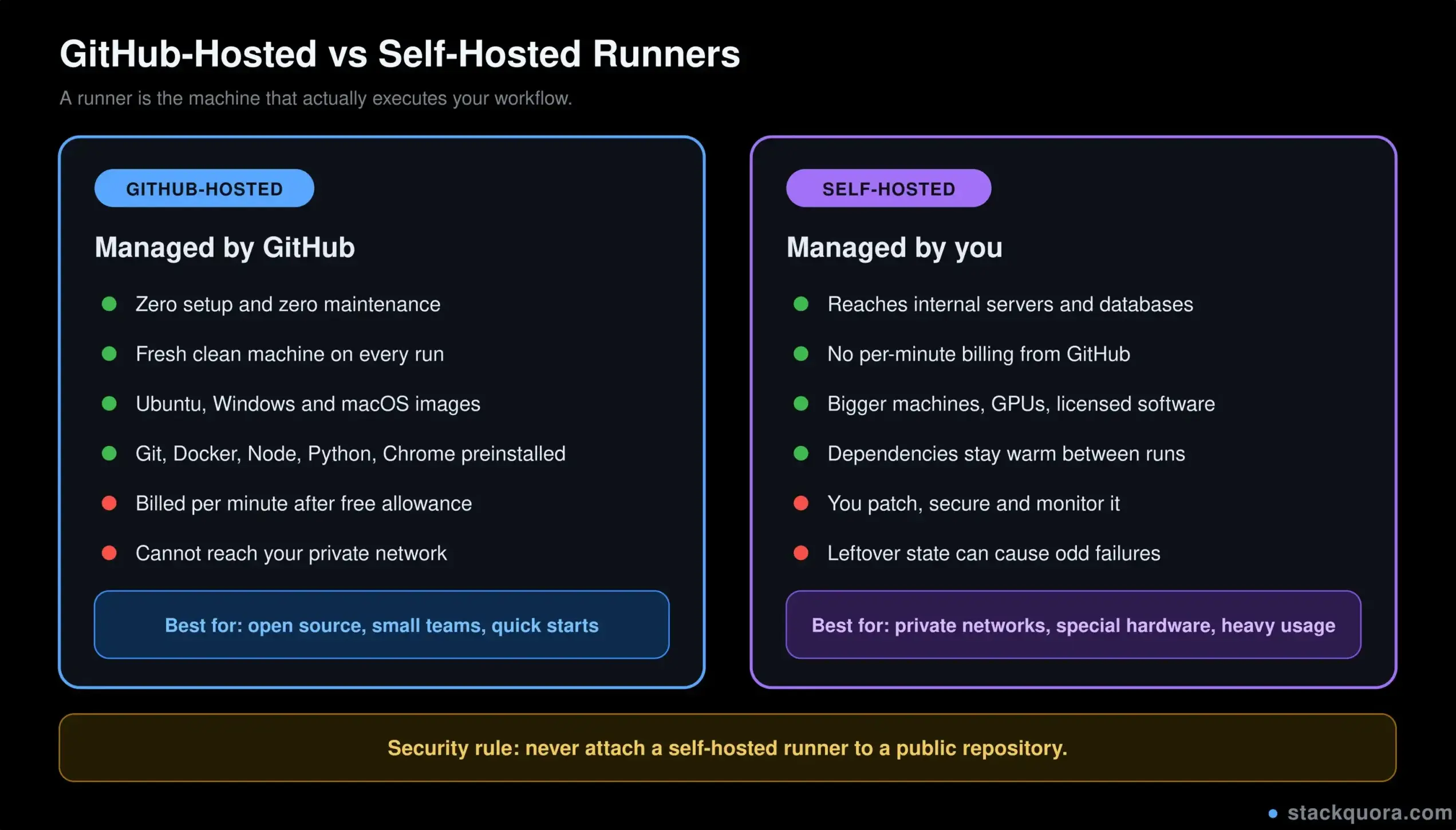
GitHub-Hosted vs Self-Hosted Runners
A GitHub Actions runner is the machine that executes your job. You have two options.
GitHub-hosted runners are fresh virtual machines that GitHub creates and destroys for you.
- Nothing to install or maintain
- Clean environment on every run, so no leftover state
- Ubuntu, Windows and macOS images available
- Common tools are preinstalled, including Git, Docker, Node, Python, Java and Chrome
- You pay per minute after your free allowance
- No access to anything inside your private network
Self-hosted runners are machines you own and register with GitHub.
- Can reach internal databases, staging servers and licensed software
- No per-minute billing, you just pay for the hardware
- You can use bigger machines, GPUs or specific hardware
- Dependencies stay warm between runs, so builds can start faster
- You handle patching, cleanup, security and uptime
- State can leak between runs and cause strange failures
Picking one is straightforward in practice:
Use GitHub-hosted for open source, for small and mid-size teams, and for anything that does not need private network access. Use self-hosted when your build needs an internal resource, when you need special hardware, or when your monthly minutes bill has grown past the cost of a server.
One safety rule if you go self-hosted: never attach a self-hosted runner to a public repository. Anyone can open a pull request, and a pull request can run code on your machine.
GitHub Actions for Deployment
Once tests pass, the same pipeline can ship the code. This is where GitHub Actions deployment turns a test pipeline into a real CI/CD pipeline.
Here is a deploy job that only runs on main, and only after the test job succeeds:
jobs:
  test:
    runs-on: ubuntu-latest
    steps:
      - uses: actions/checkout@v6
      - run: npm ci
      - run: npm test

  deploy:
    needs: test
    if: github.ref == 'refs/heads/main'
    runs-on: ubuntu-latest
    environment: production

    steps:
      - uses: actions/checkout@v6

      - uses: actions/setup-node@v6
        with:
          node-version: "22"
          cache: "npm"

      - run: npm ci
      - run: npm run build

      - name: Deploy to server
        env:
          SSH_KEY: ${{ secrets.SSH_PRIVATE_KEY }}
          HOST: ${{ secrets.SERVER_HOST }}
        run: |
          mkdir -p ~/.ssh
          echo "$SSH_KEY" > ~/.ssh/id_rsa
          chmod 600 ~/.ssh/id_rsa
          ssh-keyscan -H "$HOST" >> ~/.ssh/known_hosts
          rsync -avz --delete dist/ deploy@"$HOST":/var/www/app/
The if: github.ref == 'refs/heads/main' line is your safety net. Without it, every feature branch would try to deploy to production.
Protecting Production With Environments
The environment: production line does more than label the job. Under Settings → Environments, you can attach rules to that environment:
- Required reviewers — the job pauses until a named person approves it
- Wait timer — force a delay before the deploy starts
- Branch restrictions — only allow deploys from specific branches
- Environment secrets — production credentials that staging jobs cannot see
This is how you get continuous delivery with a human gate, without writing any extra code. Teams often set staging to deploy automatically and production to require one approval.
For cloud platforms, skip the SSH approach and use the official actions instead. AWS, Azure, Google Cloud, Vercel, Netlify, Firebase and Cloudflare all publish maintained actions that handle authentication properly.
Caching and Speeding Up Your Pipeline
A slow pipeline quietly kills the habit. If feedback takes twenty minutes, people stop waiting for it. Four changes usually give the biggest wins.
- Cache dependencies. The
setup-node,setup-pythonandsetup-javaactions have a built-incacheinput. One line, big saving. - Split slow work into parallel jobs. Lint, unit tests and build can all run at the same time instead of one after another.
- Skip runs you do not need. Use
paths-ignoreso a README edit does not trigger a full test suite. - Cancel outdated runs. If someone pushes three times in five minutes, only the last one matters.
That last one is a three-line addition at the top of your workflow:
concurrency:
  group: ${{ github.workflow }}-${{ github.ref }}
  cancel-in-progress: true
For anything the setup actions do not cover, use the cache action directly:
      - uses: actions/cache@v5
        with:
          path: ~/.m2/repository
          key: maven-${{ hashFiles('**/pom.xml') }}
          restore-keys: maven-
The key uses a hash of your dependency file, so the cache refreshes automatically when dependencies change. restore-keys gives you a partial match when the exact key is missing, which is better than starting from nothing.
Reusable Workflows and Composite Actions
Once you have five repositories with almost the same pipeline, copy-paste becomes a maintenance problem. Two features fix it.
Reusable workflows let one workflow call another. The called workflow uses workflow_call as its trigger:
# .github/workflows/shared-ci.yml
on:
  workflow_call:
    inputs:
      node-version:
        required: false
        default: "22"
        type: string
And any repository in your organisation can call it:
jobs:
  ci:
    uses: my-org/ci-templates/.github/workflows/shared-ci.yml@main
    with:
      node-version: "20"
    secrets: inherit
Composite actions do the same thing at the step level. If five steps always appear together, bundle them into one action and call it with a single uses line.
Start simple and refactor later. Do not build a reusable workflow framework before you have a working pipeline.
What GitHub Actions Costs
For public repositories, GitHub Actions is free on standard runners. That is a genuinely good deal for open source projects.
For private repositories, every plan includes a monthly allowance of free minutes and storage, and you pay for usage above it. Two things affect the bill more than people expect:
- Operating system multipliers. Linux minutes are the cheapest. Windows costs several times more per minute, and macOS costs the most by a wide margin.
- Matrix builds. A six-way matrix uses roughly six times the minutes of a single run.
Practical ways to keep costs sane: run on Linux unless you specifically need another OS, cache dependencies, add timeout-minutes to every job so a hung test cannot run for six hours, and keep artifact retention-days short. Pricing changes over time, so check GitHub’s current billing page before you plan a budget.
Common GitHub Actions Errors and How to Fix Them
Everyone hits these. Here is what they mean and what to do.
“Workflow does not run at all” Nine times out of ten the file is in the wrong place. It must be at .github/workflows/file.yml, on the default branch, with a .yml or .yaml extension. Also confirm Actions is enabled under Settings.
“Invalid workflow file” or a YAML parse error An indentation problem, usually a tab character or a misaligned key. The error message gives a line number. Paste the file into a YAML validator to find it quickly.
“No such file or directory” You forgot actions/checkout. The runner has no code until you check it out. This is the single most common first-workflow mistake.
“Command not found: npm / python / java” You skipped the setup step, or the tool version you assumed is not on the image. Add the matching actions/setup-* action.
“Permission denied” on a script Git did not keep the executable bit. Add chmod +x ./script.sh as a step before you run it.
“Resource not accessible by integration” The default GITHUB_TOKEN does not have the permission your step needs. Grant it explicitly:
permissions:
  contents: read
  pull-requests: write
“Tests pass locally but fail on CI” Usually one of four things: a missing environment variable, a different tool version, a time zone difference (runners use UTC), or a test that depends on another test having run first. Reproduce it by matching the runner’s versions locally.
“Artifact already exists” in a matrix Two matrix legs used the same artifact name. Include the matrix values in the name.
“Flaky UI tests” Usually timing, not the pipeline. Replace fixed sleeps with proper waits, and check whether the app was actually ready before the test started.
“An action suddenly stopped working” A major version was deprecated or the runner image changed. Read the action’s release notes and bump the major version.
One debugging trick worth knowing: re-run a failed job with Re-run jobs → Enable debug logging. It turns on verbose output without you editing the workflow. You can also add a temporary step that prints the environment:
      - name: Debug context
        run: |
          echo "Branch: ${{ github.ref }}"
          echo "Event: ${{ github.event_name }}"
          node -v
          ls -la
GitHub Actions Security Tips
CI systems are a popular attack target, because they hold credentials and can push code. A few habits remove most of the risk.
- Pin third-party actions to a commit SHA, not a moving tag, for anything outside
actions/. A tag can be repointed by whoever owns the action. - Set least-privilege permissions. Add a top-level
permissions: contents: readand grant more only where a job needs it. - Be very careful with
pull_request_target. This trigger runs with access to your secrets. GitHub tightened the checkout action’s defaults in 2026 so it refuses to check out fork code under this trigger unless you explicitly opt in. Do not opt in unless you fully understand why. - Require approval for first-time contributors. Repository settings let you gate workflow runs from new contributors.
- Never echo secrets, and never pass them into a step that does not need them.
GitHub Actions Best Practices
These are the CI/CD best practices that separate a pipeline people trust from one people ignore.
- Keep it fast. Target under ten minutes for the pull request pipeline. Move anything slower to a nightly run.
- Fail loudly and clearly. A good failure message points to the exact step. Name your steps properly so the log is readable.
- One workflow, one purpose. Do not put build, test, deploy, release and cleanup in one giant file.
- Always pin versions. Actions, language versions and runner images. Pinning is how you make yesterday’s green run mean something.
- Set
timeout-minuteson every job. It protects both your minutes and your patience. - Make the pipeline reproducible locally. If a developer cannot run the same commands on their machine, debugging becomes guesswork.
- Use branch protection. Require the CI check to pass before merge, otherwise the pipeline is only a suggestion.
- Do not ignore flaky tests. Quarantine them, fix them, or delete them. A suite people re-run until it goes green is worse than no suite.
- Add
concurrencyto cancel superseded runs. Free speed and free savings. - Review your workflows every few months. Action majors move, runner images change, and unused jobs pile up.
GitHub Actions vs Jenkins
GitHub Actions vs Jenkins is the comparison most teams face when they modernise an older pipeline.
Jenkins is a self-hosted automation server that has been around since 2011. It runs anywhere, supports thousands of plugins, and can automate almost anything. It also needs a server, a person to maintain it, and regular plugin updates. Its strength is flexibility. Its cost is upkeep.
GitHub Actions is managed for you. There is no server, no plugin list, and no upgrade weekend. Workflows live next to the code, which means pipeline changes go through code review like everything else. The trade-off is that it is tied to GitHub, and complex enterprise scenarios sometimes need workarounds Jenkins handles natively.
Choose Jenkins when you have heavy compliance requirements, a large existing investment in Jenkins pipelines, complex build orchestration across many tools, or code hosted outside GitHub.
Choose GitHub Actions when your code is already on GitHub, you want to start today rather than next month, and you would rather not employ someone to babysit a build server.
For most small and mid-size teams starting fresh in 2026, GitHub Actions is the faster path. Large enterprises often run both.
GitHub Actions vs GitLab CI/CD
GitHub Actions vs GitLab CI is a closer fight, because both are built into their platform and both use YAML.
GitLab CI/CD uses a single .gitlab-ci.yml file with a strong stage-based model. Stages run in order, and jobs inside a stage run in parallel. That structure is easy to reason about. GitLab also bundles more of the DevOps toolchain in one product, including issue tracking, container registry, security scanning and deployment environments.
GitHub Actions uses multiple workflow files and an event-driven model. Its biggest advantage is the Marketplace. There are thousands of prebuilt actions, so common tasks are usually one line instead of twenty.
Practical differences that matter day to day:
- GitLab’s
stagesmodel is more intuitive at first. GitHub’sneedsmodel is more flexible once pipelines get complex. - GitHub’s Marketplace ecosystem is significantly larger.
- GitLab bundles more built-in DevOps features without extra tools.
- Both support self-hosted runners, matrices, caching, artifacts and manual approvals.
Honestly, the deciding factor is almost always where your code lives. Both tools are good. Do not migrate your repositories just to change CI.
Is GitHub Actions Good for Beginners?
Yes, and it is one of the friendliest ways to learn CI/CD at all.
There is nothing to install. No server, no agent, no local setup. You create one file and the platform does the rest. The Actions tab shows live logs, so you can watch your pipeline run and immediately see which command broke. That feedback loop is a genuinely good teacher.
There are starter templates for most languages, so your first workflow can be running in ten minutes. And because public repositories get free minutes, you can practise as much as you like on a personal project without a bill.
The one real learning curve is YAML indentation. Give it an afternoon and it stops being a problem.
A practical learning path:
- Make a workflow that prints a message on push.
- Add checkout and a dependency install.
- Add your test command.
- Add a matrix across two versions.
- Add an artifact upload for the test report.
- Add a deploy job with
needsand a branch condition.
Each step is small. By step six you have a real CI/CD pipeline and a skill that appears in a very large share of developer and QA job postings.
Conclusion
GitHub Actions takes the boring, repeatable, easy-to-forget parts of shipping software and hands them to a machine that never forgets. Build on every push. Test on every pull request. Deploy with one approval instead of one person’s laptop.
You do not need a perfect pipeline on day one. Start with a single workflow that checks out your code and runs your tests. Get it green. Then add a matrix, then artifacts, then a deploy job with a branch condition. Each addition takes minutes and pays you back on every commit after that.
The real win is not automation for its own sake. It is confidence. When the pipeline is green, you know the code builds, the tests pass and the thing you are about to ship actually works. That is worth an afternoon of YAML.
Frequently Asked Questions
Is GitHub Actions free?
It is free and unlimited for public repositories on standard runners. Private repositories get a monthly allowance of free minutes and storage depending on your plan, and usage above that is billed per minute. Linux minutes are the cheapest, Windows costs more, and macOS costs the most.
Where do GitHub Actions workflow files go?
Inside a folder called .github/workflows/ at the root of your repository, with a .yml or .yaml extension. Any other location will be ignored silently.
Can GitHub Actions deploy to AWS, Azure or Google Cloud?
Yes. All three publish official actions. The recommended approach is OpenID Connect, which lets the workflow request a short-lived cloud token at run time instead of storing a long-lived access key as a secret.
Do GitHub Actions jobs run in parallel?
By default, yes. All jobs in a workflow start at the same time on separate runners. Use needs to force an order. Steps inside a single job always run in sequence.
How do I pass files between two jobs?
Upload them with actions/upload-artifact in the first job and pull them down with actions/download-artifact in the second. Jobs run on different machines, so they do not share a file system.
Can I run GitHub Actions on my own server?
Yes, using a self-hosted runner. Install the runner agent on your machine and register it with your repository or organisation, then set runs-on: self-hosted. Do not do this on a public repository.
How do I trigger a workflow manually?
Add workflow_dispatch to the on block. A “Run workflow” button appears in the Actions tab, and you can define inputs so the person running it can choose an environment or a branch.
Why do my tests pass locally but fail in GitHub Actions?
The most common causes are a missing environment variable or secret, a different language or tool version on the runner, a time zone difference because runners use UTC, or a test that silently depended on leftover local data.
What is the difference between a secret and a variable?
Secrets are encrypted, masked in logs and meant for passwords, tokens and keys. Variables are plain text and meant for non-sensitive configuration such as a region name or an API base URL.
Can GitHub Actions run Selenium and Playwright tests?
Yes, both run well in headless mode. Playwright installs its own browsers with npx playwright install --with-deps. Selenium can use the Chrome and ChromeDriver already present on the Ubuntu runner image, as long as you pass headless flags in your driver options.