
Docker Tutorial for Beginners: Complete Guide to Docker in 2026
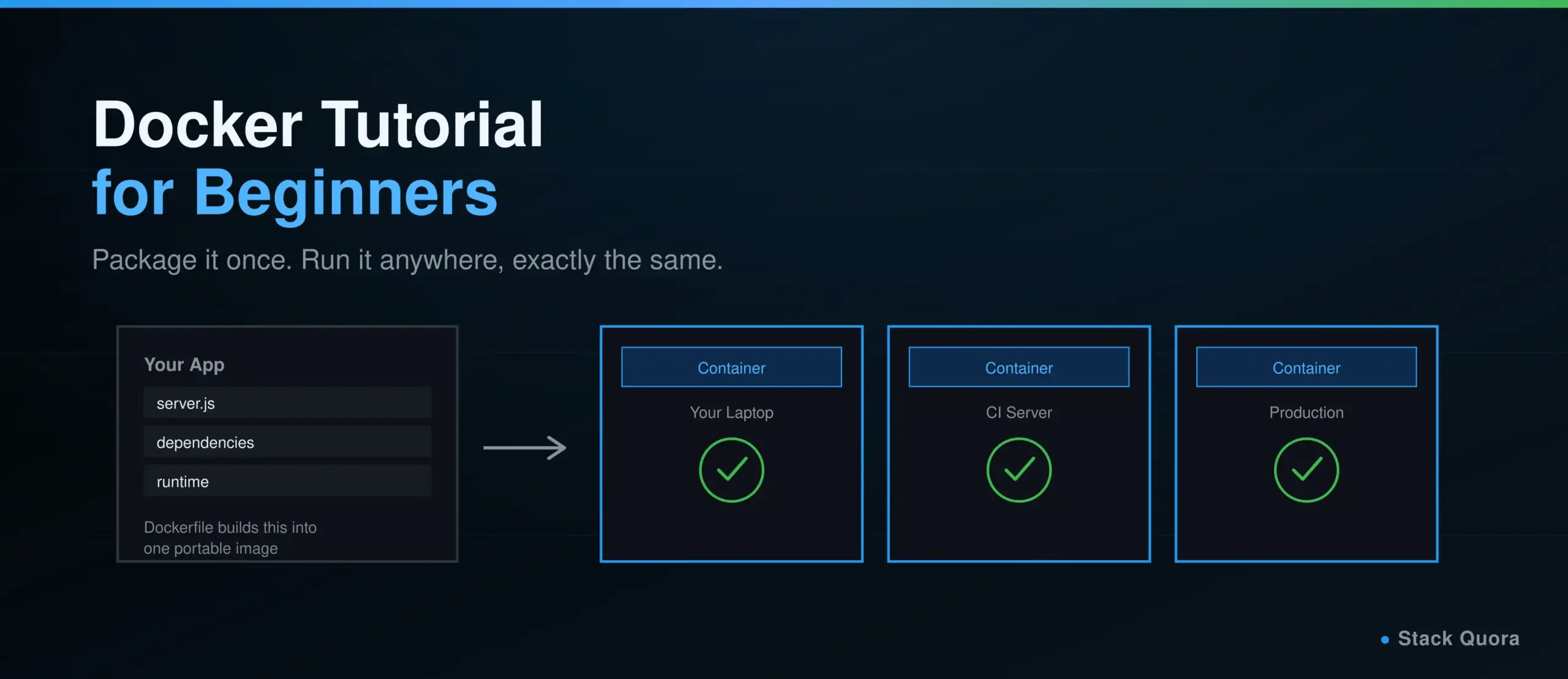
“It works on my machine” is one of the most quietly expensive sentences in software development. A teammate pulls your code, their setup is slightly different, and something that worked perfectly for you throws an error for them. Docker exists specifically to make that sentence obsolete.
Docker packages an application together with everything it needs to run – the code, the runtime, the libraries, the exact versions – into a single, portable unit called a container. That container runs the same way on your laptop, a teammate’s laptop, a test server and production, because it is not depending on whatever happens to already be installed on each machine.
This tutorial takes you from zero to genuinely comfortable with Docker: what a container actually is, essential commands you’ll use daily, writing your own Dockerfile, networking and persistent storage, Docker Compose for multi-container apps, and where Docker fits into testing and CI/CD. If you’re vibe coding an app and it’s finally time to actually ship it somewhere, this is usually the step that comes next.
What Is Docker?
Docker Explained in Simple Terms
Docker is a platform for building, running and sharing applications inside containers – lightweight, isolated environments that package an application with everything it needs, so it behaves the same way no matter where it runs.
What Is Containerization?
Containerization is the underlying idea: instead of installing an application directly onto a machine and hoping the environment matches what the developer used, you package the application together with its dependencies into one self-contained unit. That unit, a container, carries its own environment with it wherever it goes.
Why Do Developers Use Docker?
- Consistency. The same container runs identically on a developer’s laptop, a CI server and production, removing an entire category of environment-specific bugs.
- Isolation. Each container runs independently, so one application’s dependencies never conflict with another’s, even if they need completely different versions of the same tool.
- Speed. Containers start in seconds, far faster than a traditional virtual machine, because they share the host machine’s operating system kernel instead of running a full separate OS.
- Portability. A container built once can run on any machine with Docker installed, regardless of the underlying operating system.
Full technical detail on everything in this guide lives in the official Docker documentation, worth bookmarking now.
The “Works on My Machine” Problem
Before Docker, getting an application running on a new machine meant manually installing the right language version, the right system libraries, the right database, and hoping nothing conflicted with something else already on that machine. Multiply that across a team, and small environment differences compound into real, time-consuming bugs that have nothing to do with the actual code.
Docker solves this by making the environment itself part of what gets shipped. A Dockerfile describes exactly what the application needs, an image gets built from it once, and that same image runs identically everywhere, instead of every machine building its own slightly different version of “the environment this app needs.” Traditional installation asks every machine to recreate the right setup from scratch; a container just brings its setup with it.
How Does Docker Work? Docker Architecture Explained
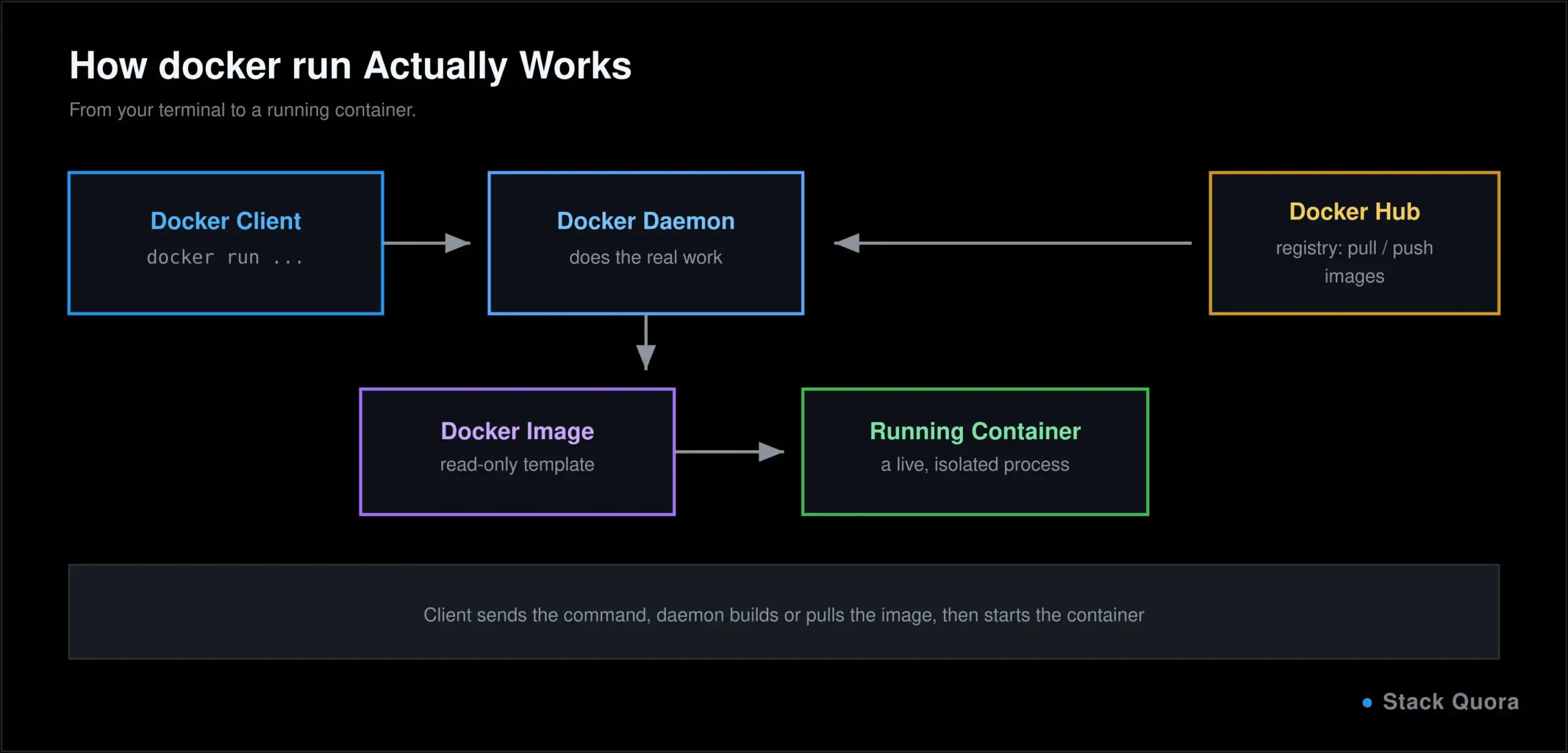
A handful of pieces work together every time you run a Docker command:
- Docker Client is the command-line tool you actually type commands into —
docker run,docker build, and so on. - Docker Daemon (Engine) is the background service that does the real work: building images, running containers, managing networking and storage. The client talks to the daemon, which does the actual heavy lifting.
- Docker Images are the read-only templates containers get created from, containing the application code, a runtime, libraries and all other dependencies.
- Docker Containers are running instances of an image, the actual live, isolated process doing the work.
- Docker Registry is a storage and distribution system for images. Docker Hub, at hub.docker.com, is the default public registry, hosting a huge number of official and community-published images you can pull and use directly.
The flow, in order: you write a Dockerfile, docker build turns it into an image, that image gets stored locally (and optionally pushed to a registry like Docker Hub), and docker run starts a container from it.
Docker Images vs Docker Containers
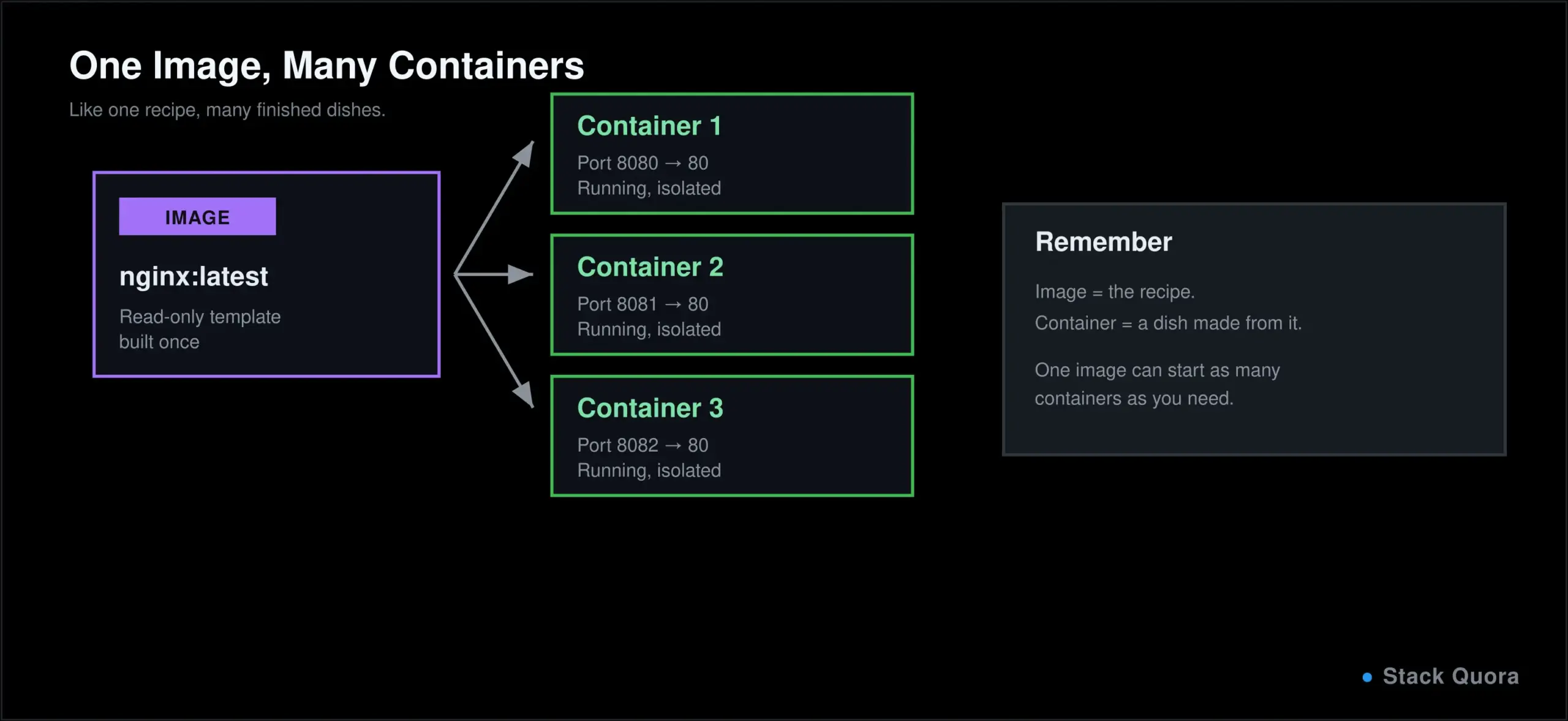
This distinction trips up almost every beginner at first, so it’s worth a clean analogy: a Docker image is like a class in programming, or a recipe in cooking. A Docker container is an actual object created from that class, or an actual dish made from that recipe. One image can spin up many containers, each one an independent, running instance.
# Pull an image (the template)
docker pull nginx

# Run a container from that image (the running instance)
docker run -d -p 8080:80 nginx
You can run that same docker run command multiple times and get multiple separate containers, each based on the same image, each running independently with its own isolated process and file system.
Installing Docker and Running Your First Container
Head to the official Docker install guide and download Docker Desktop for Windows or macOS, or install the Docker Engine directly on Linux. Once it’s installed, confirm it worked:
docker --version
docker run hello-world
That second command pulls a tiny test image and runs it in a container, printing a confirmation message if everything is working correctly. It’s the “Hello, world!” of Docker, and it’s genuinely satisfying the first time it works.
Essential Docker Commands
These eleven commands cover the vast majority of what you’ll actually type day to day:
docker pull image-name        # download an image from a registry
docker images                 # list images stored locally
docker run image-name          # create and start a container from an image
docker ps                      # list running containers
docker ps -a                   # list all containers, including stopped ones
docker stop container-id       # stop a running container
docker start container-id      # start a stopped container
docker restart container-id    # restart a container
docker exec -it container-id bash   # open a shell inside a running container
docker logs container-id       # view a container's output
docker rm container-id         # remove a stopped container
docker rmi image-name          # remove an image
docker exec -it container-id bash deserves special attention early on, because it’s how you actually look inside a running container to debug something – a genuinely essential habit once things stop working as expected.
What Is a Dockerfile?
A Dockerfile is a plain text file containing step-by-step instructions for building a Docker image. Here’s a real, working example for a small Node.js app:
FROM node:22-slim
WORKDIR /app
COPY package*.json ./
RUN npm install
COPY . .
EXPOSE 3000
CMD ["node", "server.js"]
Reading it top to bottom: FROM sets the base image everything else builds on top of. WORKDIR sets the working directory inside the container for every instruction after it. COPY copies files from your machine into the image. RUN executes a command during the build, like installing dependencies. EXPOSE documents which port the container listens on. CMD defines the command that runs when a container starts from this image. A related instruction, ENTRYPOINT, sets a fixed command that’s harder to override at runtime – useful when a container should really only ever do one specific thing.
The full instruction reference lives in Docker’s official Dockerfile documentation.
How to Build a Docker Image
# Build an image from the Dockerfile in the current directorydocker build -t my-app:1.0 .# Run a container from it
docker run -d -p 3000:3000 my-app:1.0
# Confirm it's running
docker ps-t my-app:1.0 tags the image with a name and version, 1.0 here, so you can reference it clearly later rather than by its long generated ID. The . at the end tells Docker to look for the Dockerfile in the current directory. Once it’s built, docker run starts it exactly like any other image, and docker ps confirms it’s actually up.
Docker Ports and Networking
A container’s internal port and the port you access it through on your machine are two different things by default, connected explicitly with -p:
docker run -d -p 8080:80 nginx
# host port : container port
Here, the container listens on port 80 internally, but you reach it through port 8080 on your own machine. Getting this order backwards, container:host instead of host:container, is a common early mistake worth double-checking.
By default, Docker creates a bridge network that lets containers on the same machine talk to each other by name rather than by IP address, which matters the moment you have more than one container that need to communicate:
docker network create my-network
docker run -d --network my-network --name db postgres
docker run -d --network my-network --name app my-app:1.0
With both containers on my-network, the app container can reach the database simply by using db as the hostname, no IP address needed.
Docker Volumes and Persistent Storage
A container’s file system disappears when the container is removed, which is a problem the moment you’re running something like a database, where losing all your data on every restart isn’t an option.
# A named volume, managed by Docker
docker run -d -v my-data:/var/lib/postgresql/data postgres

# A bind mount, linking to a specific folder on your own machine
docker run -d -v $(pwd)/data:/var/lib/postgresql/data postgres
Volumes are managed by Docker itself and are the recommended approach for most persistent data, like a database’s files. Bind mounts link a container directly to a specific folder on your host machine, which is especially useful during development, letting you edit code on your machine and see the change reflected instantly inside a running container. A third option, tmpfs mounts, stores data only in memory, never touching disk at all, useful for sensitive, temporary data you specifically don’t want persisted anywhere.
Environment Variables and Secrets in Docker
docker run -e DATABASE_URL=postgres://localhost/mydb my-app:1.0# Or from a file, cleaner once you have several
docker run --env-file .env my-app:1.0A .env file keeps your environment variables out of the command line itself and out of your Dockerfile. Treat it the way you’d treat any file with credentials in it: add it to .gitignore immediately, and never bake real secrets directly into an image with a COPY or RUN instruction — anyone with access to that image can extract them, even from an old, unused layer.
Docker Compose Explained
Most real applications aren’t one container; they’re several – an app, a database, maybe a cache – that all need to run together. Docker Compose defines that whole setup in one file and starts it with a single command.
# compose.yaml
services:
  app:
    build: .
    ports:
      - "3000:3000"
    environment:
      - DATABASE_URL=postgres://db:5432/mydb
    depends_on:
      - db

  db:
    image: postgres:16
    volumes:
      - db-data:/var/lib/postgresql/data
    environment:
      - POSTGRES_PASSWORD=example

volumes:
  db-data:
docker compose up -d
docker compose downNote the file name and the command: compose.yaml is the current standard name (the older docker-compose.yml still works, for backward compatibility), and docker compose – as two words, no hyphen – is the current command, built directly into the Docker CLI rather than a separate tool you install on the side. Full syntax detail lives in the Compose file reference.
That depends_on line matters: it tells Compose to start db before app, and Docker’s built-in networking automatically lets app reach db by name, exactly as shown in the networking section above. This same pattern is exactly how you’d run a vector database like Qdrant alongside an AI application’s container – add it as another service, give it a volume for persistence, and your app reaches it the same way it reaches the database here.
Docker for Python and Node.js Development
A Python Dockerfile
FROM python:3.14-slimWORKDIR /app
COPY requirements.txt .
RUN pip install --no-cache-dir -r requirements.txt
COPY . .
CMD ["python", "app.py"]If you’re new to Python itself rather than just containerizing it, our Python tutorial covers the language from the ground up before you get here.
A Node.js Dockerfile
FROM node:22-slimWORKDIR /app
COPY package*.json ./
RUN npm ci
COPY . .
EXPOSE 3000
CMD ["node", "server.js"]Same shape as the Python version, adapted to Node’s tooling: npm ci instead of pip install, installing from the exact versions in your lock file rather than resolving fresh ones during the build. If JavaScript itself is the part you’re still learning, our JavaScript tutorial is the place to start before layering Docker on top.
In both cases, copying the dependency file (requirements.txt or package.json) and installing before copying the rest of your code is a deliberate ordering choice, not an accident – it lets Docker reuse that installed-dependencies layer on future builds as long as your dependencies haven’t changed, which makes rebuilds noticeably faster.
Docker for Software Testing
This is where Docker earns its keep for a testing-focused audience specifically, and it’s worth real attention if you’ve read any of our other testing guides.
- Isolated test environments. Running tests inside a container guarantees the exact same environment every single run, removing “the tests failed because of something on this machine” as a category of problem entirely.
- Running tests inside containers. Your test suite runs the same way locally and in CI, since it’s the same container either way.
- Docker with API testing. Spin up your API in a container, then run requests against it. If you’re new to that half of the picture, testing that API with Postman covers exactly how to structure and run those checks.
- Docker with Selenium and Playwright. Browser automation tools commonly run inside containers too, avoiding the need to install and manage browser versions directly on the machine running your tests. Playwright MCP for AI-driven testing and how AI agents are changing QA both cover where this category of testing is headed next.
Docker in CI/CD
A typical CI/CD pipeline using Docker follows a predictable shape: build the image, run the tests inside it, and, if everything passes, publish the image and deploy it.
# A GitHub Actions step that builds and tests inside Docker
- name: Build image
  run: docker build -t my-app:${{ github.sha }} .

- name: Run tests inside the container
  run: docker run my-app:${{ github.sha }} npm test
If you haven’t set up a pipeline like this before, our GitHub Actions guide covers building the full workflow this snippet lives inside, from triggers through to deployment. Publishing an image typically means pushing it to a registry (docker push) once tests pass, and deployment means pulling and running that exact tested image wherever it needs to run next – the same image, unchanged, all the way from CI to production.
Docker vs Virtual Machines
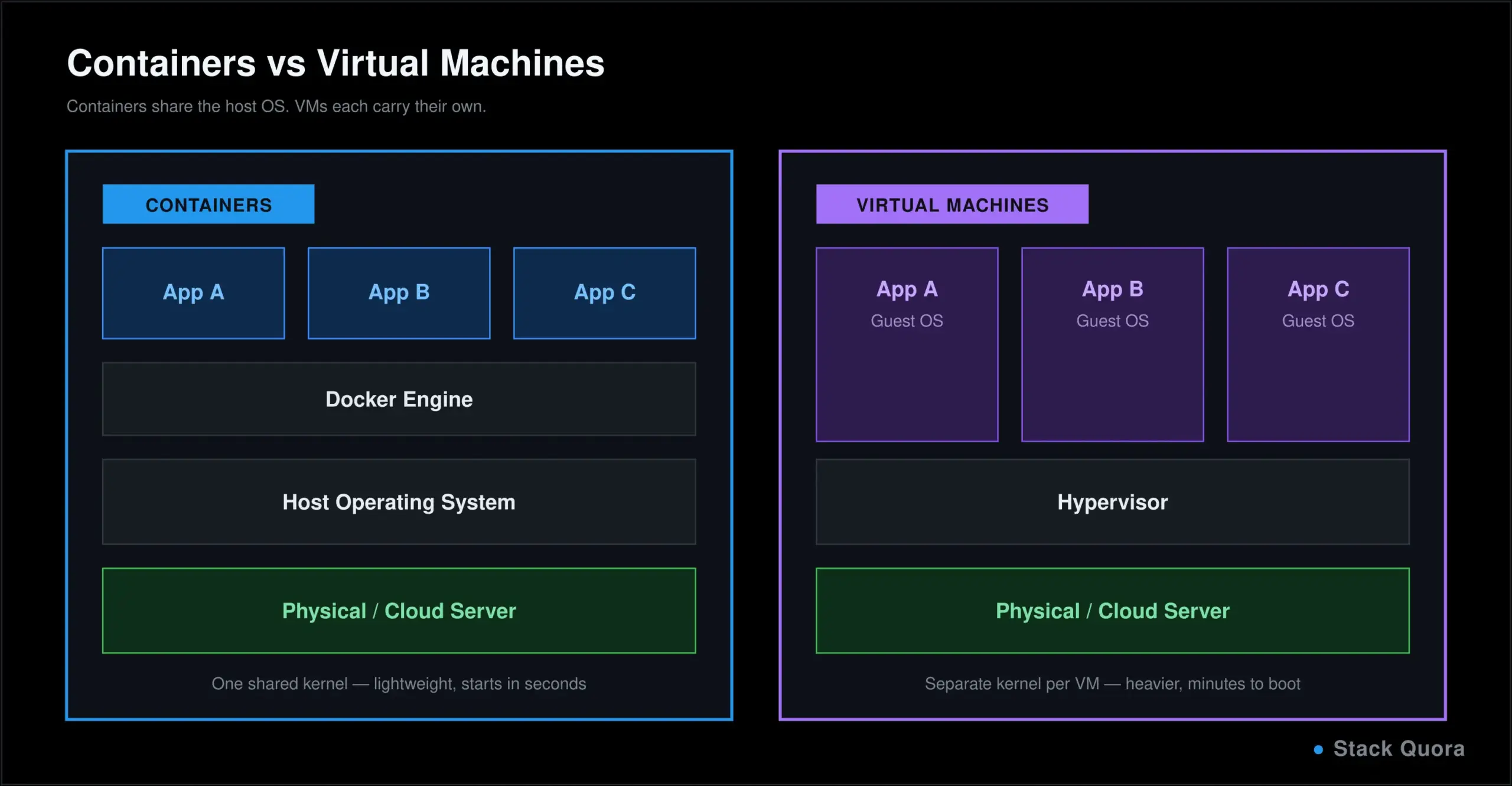
A virtual machine virtualizes an entire computer, including its own full operating system kernel, running on top of a hypervisor. That makes VMs fully isolated but heavy: each one carries the overhead of an entire separate OS, taking longer to start and using considerably more resources.
A container shares the host machine’s OS kernel and only packages the application and its dependencies, not an entire operating system. That makes containers dramatically lighter and faster to start, typically in seconds rather than minutes, at the cost of slightly less isolation than a full VM provides.
When should you use containers instead of a VM? For packaging and running applications consistently, containers are almost always the better fit today. VMs still make sense when you genuinely need to run a different operating system entirely, or need the stronger isolation boundary a full VM provides for security-sensitive workloads.
Docker vs Kubernetes
Kubernetes is a container orchestration platform: a system for running, scaling and managing many containers across many machines automatically, restarting failed containers, distributing load, and handling deployments without someone doing it by hand.
What problem does Kubernetes solve? Docker runs containers. It doesn’t, by itself, decide which of ten servers a container should run on, restart it automatically if it crashes at 3 a.m., or scale it up when traffic spikes. That coordination problem, at real scale, is what Kubernetes exists to solve.
Docker vs Kubernetes isn’t really a fair fight, because they aren’t solving the same problem: Docker builds and runs individual containers; Kubernetes manages large numbers of them running across a cluster of machines. In practice, they work together – Kubernetes typically runs containers built the same way this guide has shown, using Docker or a Docker-compatible tool, just orchestrated at a much larger scale. For a small project or a single server, Docker and Docker Compose are usually enough on their own; Kubernetes earns its place once you’re running enough containers, across enough machines, that manual coordination stops being realistic. Full documentation lives at kubernetes.io.
Common Docker Errors and How to Fix Them
“Port is already allocated” Something else, often another container, is already using that port on your machine. Stop the conflicting container, or map to a different host port with -p 8081:80 instead.
“Container exits immediately after starting” Usually means the main process finished or crashed right away. Check docker logs container-id for the actual error, and confirm your CMD is a long-running process, not a one-off command that naturally exits.
“Image not found” Double-check the spelling and tag. docker pull image-name first to confirm the image actually exists and is reachable before trying to run it.
“Permission denied” Common on Linux when your user isn’t in the docker group, or inside a container when a process tries to write to a directory it doesn’t own. Adding your user to the docker group, or adjusting file ownership inside the Dockerfile, usually resolves it.
“Container cannot connect to another service” Almost always a networking issue: confirm both containers are on the same Docker network, and that you’re connecting by container name, not localhost, which inside a container refers to the container itself, not other containers.
Docker build errors Read the actual failing line in the build output; it names the exact instruction that failed. A COPY failing usually means a path is wrong; a RUN failing usually means the command itself failed for a reason unrelated to Docker at all.
Docker Best Practices and Security
- Use small base images. A
slimoralpinevariant, where available, builds faster and shrinks your image’s attack surface considerably compared to a full base image. - Write efficient Dockerfiles. Order instructions so things that change rarely, like installing dependencies, happen before things that change often, like copying your application code, so Docker can reuse cached layers on rebuilds.
- Use a
.dockerignorefile to keepnode_modules,.gitand other unnecessary files out of your build context entirely, the same idea as.gitignore. - Avoid running containers as root. Create and switch to a non-root user inside your Dockerfile wherever the application allows it, limiting the damage a compromised container could do.
- Keep images updated. An old base image can quietly carry known, patched vulnerabilities forward indefinitely if nobody rebuilds it.
- Never store secrets in images. Anyone with access to an image can extract anything baked into it, even from a layer you think you “removed” later. Use environment variables or a dedicated secrets manager instead.
- Scan images for vulnerabilities as a routine step, not an afterthought, using a scanner like Docker Scout or a similar tool, ideally wired into the same CI/CD pipeline that builds the image in the first place.
Common Docker Mistakes Beginners Make
- Confusing images and containers. Remember the recipe-versus-dish analogy: one image, many possible containers.
- Ignoring volumes. Losing a database’s data because it lived inside the container instead of a volume is a very common, very avoidable first mistake.
- Exposing unnecessary ports. Only publish what actually needs to be reachable from outside the container; every open port is one more thing to secure.
- Storing secrets in Dockerfiles. A
COPYor hardcodedENVwith a real credential in it is a leak waiting to happen the moment that image is shared anywhere. - Using oversized images. A bloated image is slower to build, slower to pull, and slower to deploy, with no real upside.
- Not cleaning up unused resources. Stopped containers, unused images and dangling volumes accumulate quietly;
docker system pruneclears them out when you need the space back.
Final Thoughts
Docker’s real value isn’t any single command or feature; it’s the guarantee that what you tested is exactly what ships. A container that passed your tests on your machine is the same container running in production, not a close approximation rebuilt from scratch on a different server.
You don’t need to memorize every flag or master Kubernetes on day one. Get comfortable with images, containers and the handful of commands covered here, write your first real Dockerfile, and let Compose, networking and CI/CD pull you in once you have a genuine project that needs them.
“Works on my machine” stops being a valid excuse the moment your machine and every other machine are running the exact same container.
Frequently Asked Questions
What is Docker?
Docker is a platform for building, running and sharing applications inside containers, which package an application with everything it needs to run, so it behaves consistently across any machine that has Docker installed.
Is Docker easy to learn?
The core concepts, images, containers, and a handful of commands, are genuinely approachable within a day or two of practice. Networking, volumes and Compose take a bit longer to feel fully comfortable with, which is normal.
Is Docker free?
Yes, Docker Engine and the core tooling are free and open source. Docker Desktop is free for personal use, small businesses and education, with a paid subscription required for larger commercial use – worth checking current terms directly on Docker’s site if that applies to you.
What is a Docker container?
A Docker container is a running, isolated instance of a Docker image, containing the application and everything it needs to execute, separate from whatever else is running on the host machine.
What is a Docker image?
A Docker image is a read-only template used to create containers, built from a Dockerfile and containing the application code, its runtime and all its dependencies.
What is a Dockerfile?
A Dockerfile is a plain text file containing step-by-step instructions, like FROM, COPY and RUN, that Docker follows to build an image.
What is Docker Compose?
Docker Compose is a tool for defining and running multi-container applications from a single YAML file, starting every service your application needs with one command instead of many separate ones.
What is the difference between Docker and a virtual machine?
A virtual machine virtualizes an entire computer, including its own operating system kernel. A Docker container shares the host machine’s kernel and only packages the application and its dependencies, making containers considerably lighter and faster to start.
Is Docker the same as Kubernetes?
No. Docker builds and runs individual containers. Kubernetes orchestrates large numbers of containers across many machines, handling scaling, restarts and deployment automatically. They typically work together rather than replacing one another.
Should beginners learn Docker?
Yes. It has become a standard, widely expected skill across development, QA and DevOps roles, and understanding it makes every other part of a modern software workflow, from testing to deployment, noticeably easier to reason about.