
Git Tutorial for Beginners: Complete Guide to Git and GitHub in 2026
At some point, almost everyone learning to code loses real work: a file overwritten, a change nobody can undo, two people editing the same thing and one of them losing everything. Git exists to make that permanently impossible. It remembers every version of your project, ever, and lets you move between them, compare them, and combine them safely.
This is the single most important tool in modern software development, and it’s not optional the way a framework or a language choice is – virtually every team, on every kind of project, uses Git. This guide covers it properly: what Git and GitHub actually are and how they differ, the core commands you’ll type daily, branching, merging and rebasing, the full pull request workflow, fixing the errors you will genuinely run into, and where Git fits into testing and CI/CD.
Every command here is real and safe to try. If you’re vibe coding a feature or writing every line by hand, the same discipline applies: nothing is really safe to build on top of until it’s committed.
What Is Git?
Git is a distributed version control system: software that tracks every change made to a project over time, letting you see exactly what changed, when, and by whom, and letting you return to any earlier version whenever you need to. It was created by Linus Torvalds in 2005, originally to manage development of the Linux kernel, and has since become the standard version control tool across essentially the entire software industry.
What Is Version Control?
Version control is the practice of tracking changes to files over time instead of just overwriting them. Before tools like Git, this often meant literal folders named project_final, project_final_v2, project_final_ACTUALLY_FINAL – a real, common pattern that version control replaces entirely with a proper, searchable history. Older, centralized systems like Subversion required a constant connection to a central server for almost everything; Git is distributed, meaning every developer has a full copy of the entire project history on their own machine, which is a large part of why it’s so fast and works fine offline.
Why Do Developers Use Git?
- A complete history. Every commit is a snapshot you can return to, compare against, or investigate later when trying to figure out when and why something changed.
- Safe experimentation. Branches let you try something risky in complete isolation, with zero effect on the working project until you deliberately decide to merge it in.
- Real collaboration. Multiple people can work on the same project simultaneously without overwriting each other’s work, because Git has a defined process for combining separate changes.
- It’s the industry standard. Nearly every development team, every open-source project and most technical hiring processes assume you already know Git.
What Is GitHub?
GitHub is a cloud platform for hosting Git repositories online, adding collaboration features on top of Git itself: pull requests, code review, issue tracking, project boards and, for public repositories, open-source discovery. Git is the tool. GitHub is one specific place to host projects that use it.
Git vs GitHub
This is the single most common point of confusion for beginners, so it’s worth stating plainly: Git is version control software that runs locally on your machine. GitHub is a website and service built around Git, hosting remote copies of Git repositories and adding a collaboration layer on top. You can use Git without ever touching GitHub – plenty of solo projects and private company setups do exactly that. You cannot use GitHub without Git underneath it; GitHub’s entire purpose is hosting and working with Git repositories. GitLab and Bitbucket are direct alternatives to GitHub, built around the same underlying Git.
Local vs Remote Repositories
A local repository lives on your own machine – the full project history, stored right there, that you can work with even with no internet connection at all. A remote repository is a copy of that same project hosted somewhere else, typically on GitHub, that you and your collaborators push changes to and pull changes from to stay in sync with each other.
Why Should You Learn Git in 2026?
- It underlies essentially all modern software development. Individual tools and frameworks change constantly; Git as the foundation underneath them has not.
- Team collaboration depends on it entirely. Branches, pull requests and code review, the whole modern collaborative workflow, are built directly on top of Git.
- CI/CD pipelines are triggered by it. A push or a merge to a specific branch is what starts most automated build, test and deployment pipelines running today.
- Open-source development runs on it. Contributing to any open-source project, no matter the language or stack, requires comfort with Git and, almost always, GitHub’s pull request workflow specifically.
- AI-assisted and AI-native projects still need it. Whether you’re building a project using a vector database or shipping something that started as an AI-generated first draft, the code still needs the same version history, branching and review discipline as anything written entirely by hand.
How Git Works
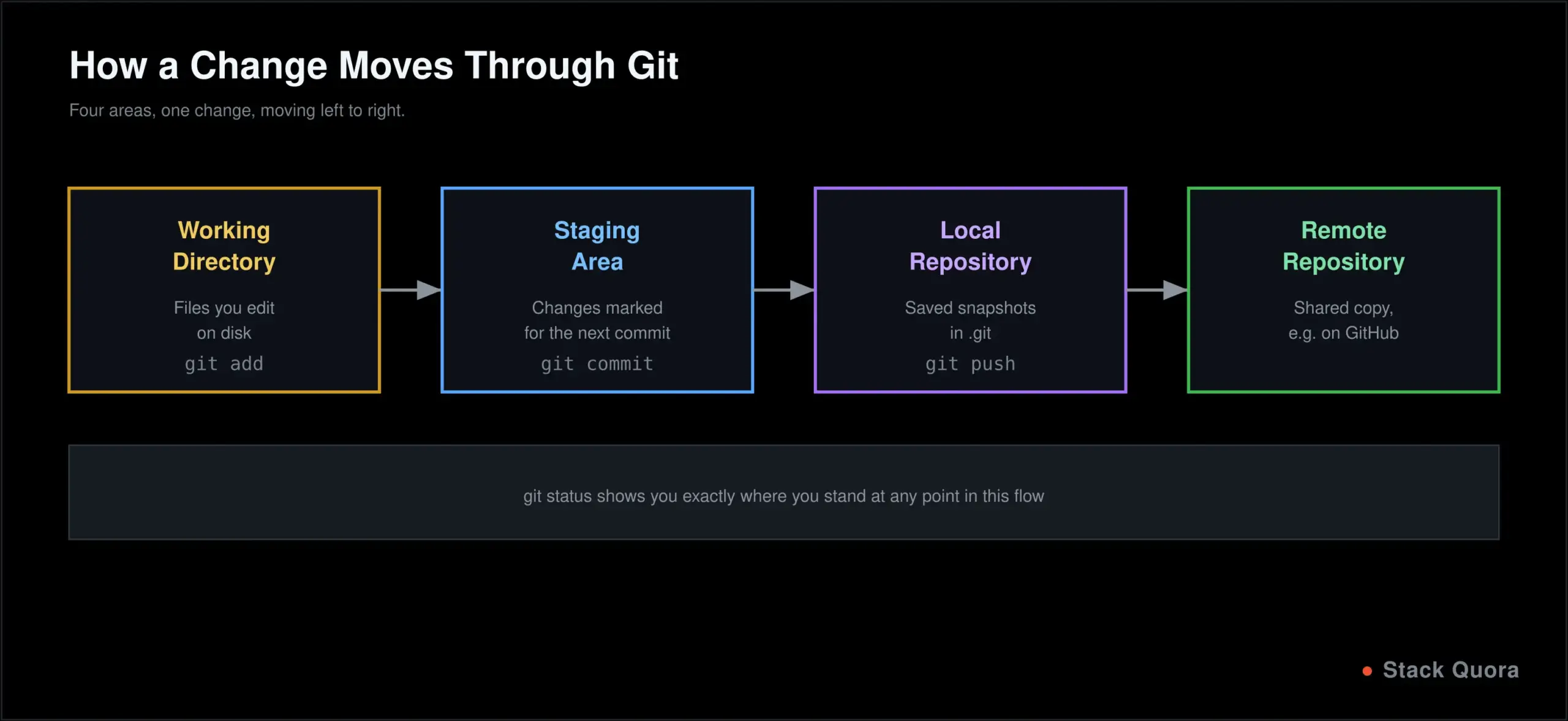
Git’s model has four conceptual areas, and understanding how a change moves between them is genuinely the key to understanding Git itself:
- Working directory – the actual files on your disk, exactly as you see and edit them in your editor.
- Staging area – a holding area where you place the specific changes you’re about to commit, letting you commit a deliberate, curated set of changes rather than everything you happened to touch.
- Local repository – where committed snapshots actually live, stored in a hidden
.gitfolder inside your project. - Remote repository – a copy hosted elsewhere, typically on GitHub, that you sync with by pushing and pulling.
The basic day-to-day workflow: edit a file in your working directory, stage the specific change with git add, commit it with git commit to save it permanently into your local history, then git push to send that commit to the remote repository so others can see it. For the full technical depth behind this model, Pro Git, the free official book, is worth bookmarking now.
How to Install Git and Set Up Your First Repository
Install Git and Configure Your Identity
Download Git from the official Git website for Windows, macOS or Linux. Once it’s installed, confirm it worked and set your identity, which Git attaches to every commit you make from here on:
git --version

git config --global user.name "Your Name"
git config --global user.email "you@example.com"
As of 2026, Git 2.55 is the current stable release line; any reasonably recent version works fine for everything in this guide.
Create Your First Repository
mkdir my-projectcd my-project
git init
echo "# My Project" > README.md
git add README.md
git status
git commit -m "Initial commit"git init turns a plain folder into a Git repository by creating that hidden .git folder. git status is worth running constantly, especially early on – it tells you exactly what’s changed, what’s staged, and what Git is currently expecting you to do next.
Essential Git Commands
These eight cover the large majority of everyday Git use:
git init                    # start a new repository
git clone <url>              # copy an existing remote repository locally
git status                   # see what's changed and what's staged
git add <file>                # stage a change for the next commit
git commit -m "message"       # save staged changes as a permanent snapshot
git log                      # view commit history
git diff                     # see exact line-by-line changes, unstaged vs staged
git show <commit>             # view the full details of one specific commit
git log --oneline is worth knowing early too – a compact, one-line-per-commit view that’s far easier to scan than the full default output once your history grows past a handful of commits.
Git Branches Explained
A branch is an independent line of development, letting you work on something, a new feature, an experiment, a fix, without touching the stable version of the project until you’re genuinely ready to bring it in.
git branch new-feature          # create a branch
git checkout new-feature         # switch to it
# or, in one step:
git checkout -b new-feature

git branch                      # list branches
git branch -m old-name new-name  # rename a branch
git branch -d new-feature        # delete a branch (once merged)
Modern Git and GitHub use main as the default branch name; you’ll still see plenty of older repositories using master instead, a naming convention that’s being actively phased out but that you’ll still encounter, especially in older projects. Functionally, they behave identically – main is simply the current default name for a repository’s primary branch.
Git Merge Explained
Merging combines the changes from one branch into another, most commonly bringing a finished feature branch back into main.
git checkout main
git merge new-feature
Fast-Forward vs Three-Way Merge
If main hasn’t changed at all since you branched off it, Git performs a fast-forward merge: it simply moves main‘s pointer forward to include your new commits, with no extra merge commit needed. If main has moved forward with other commits in the meantime, Git performs a three-way merge instead, creating a new commit that combines both histories together.
Resolving Merge Conflicts
A conflict happens when the same lines of the same file were changed differently on both branches, and Git genuinely cannot decide which version you want automatically. Git marks the conflicting section directly in the file:
<<<<<<< HEAD
your current version
=======
the incoming version
>>>>>>> new-feature
Edit the file to keep whichever version is correct (or a combination of both), remove those conflict markers entirely, then stage and commit the resolved file:
git add resolved-file.txt
git commit
Git Rebase Explained
How Rebase Works
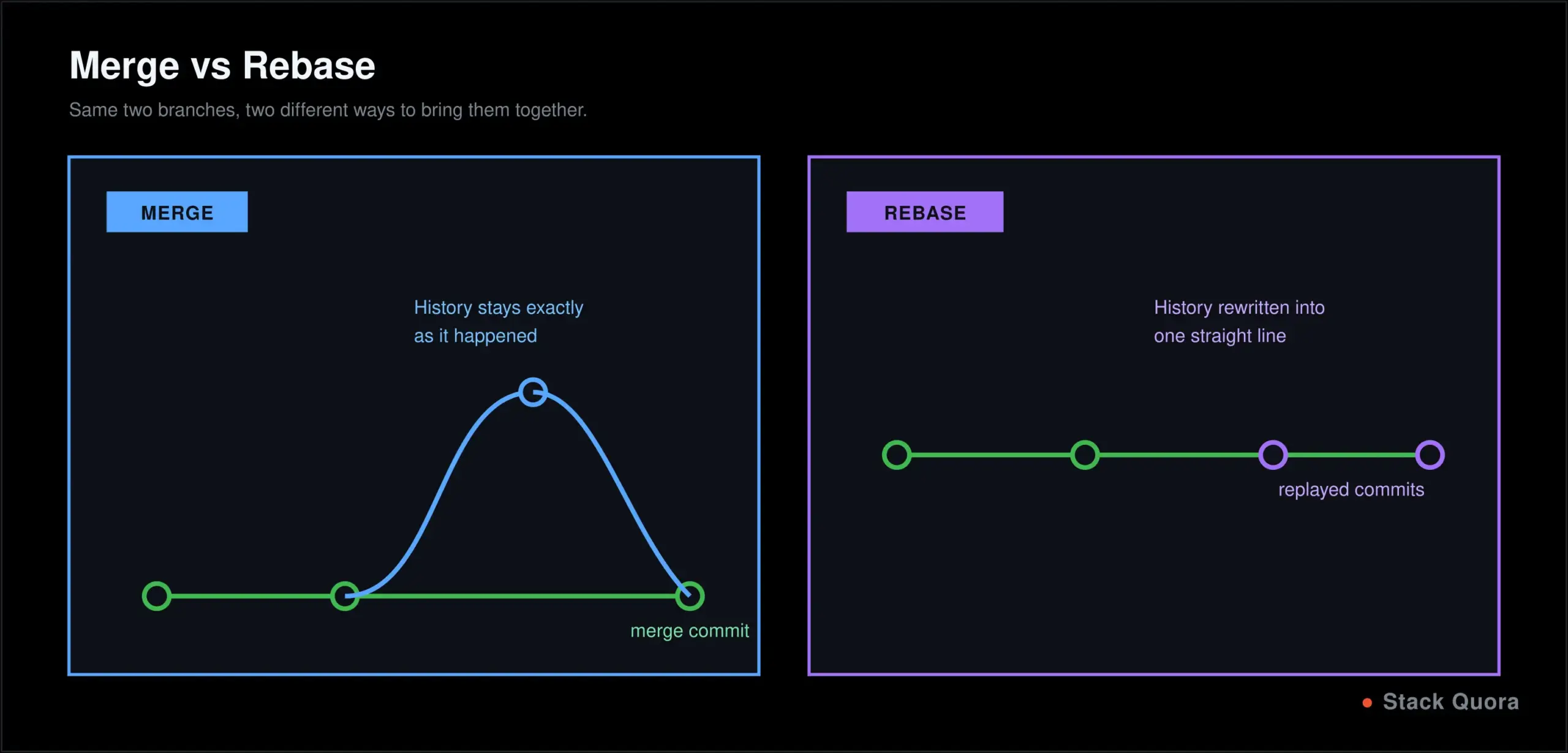
Rebasing takes the commits from one branch and replays them on top of another, producing a cleaner, linear history instead of a merge commit tying two histories together.
git checkout new-feature
git rebase main
Rebase vs Merge
Merge preserves the true history exactly as it happened, including a merge commit that shows two branches genuinely came together. Rebase rewrites history into a straight line, as if your changes had been built on top of the latest main all along – cleaner to read, but it literally changes commit history rather than just adding to it.
When to Use Rebase, and When Not To
Rebase local commits you haven’t shared with anyone yet, freely, to keep your own history clean before you push. Never rebase commits that other people have already pulled and are building on top of – doing so rewrites history they already depend on, and untangling the resulting mess is a genuinely common, genuinely painful mistake. When in doubt, merge; it’s the safer default, especially on a shared branch.
Git Remote Repositories: push, pull and fetch
git remote add origin https://github.com/username/repo.git
git push origin main       # send your local commits to the remote
git pull origin main        # fetch AND merge the remote's changes into yours
git fetch origin             # fetch the remote's changes, but don't merge yet

git push -u origin main     # set the upstream, so future pushes just need "git push"
git pull versus git fetch is worth understanding precisely, because the difference matters in practice: git fetch downloads what’s changed on the remote without touching your own working files at all, letting you look at what changed before deciding what to do about it. git pull does that same fetch and then immediately merges those changes into your current branch in one step. fetch is the safer, more deliberate option when you want to inspect changes first; pull is the faster, more common everyday habit once you trust your workflow.
The Complete Git and GitHub Workflow
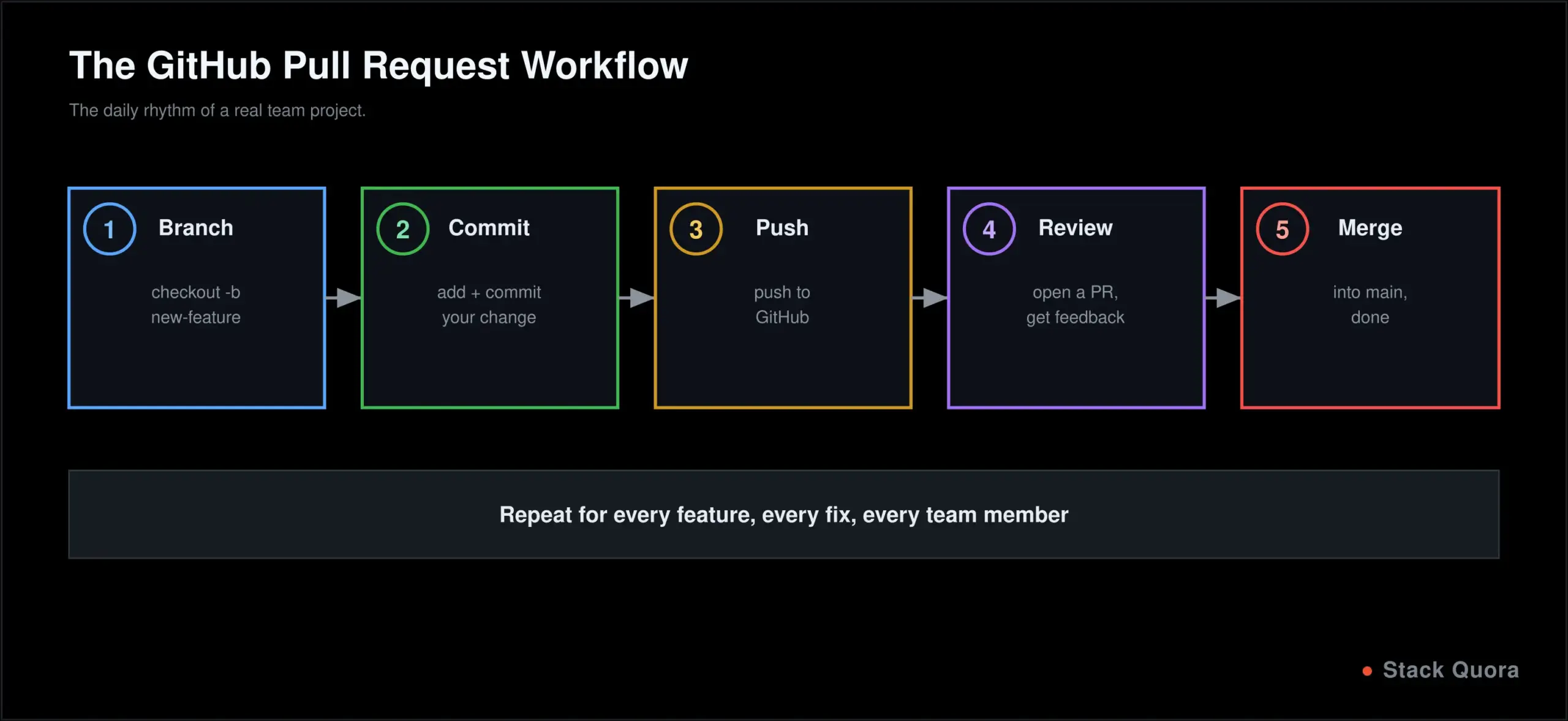
This is the full loop, end to end, exactly as GitHub’s own documentation describes it: branch, commit, push, open a pull request, review, merge.
# 1. Create a new repository on GitHub through the web interface, then:
git clone https://github.com/username/repo.git
cd repo

# 2. Create a branch for your change
git checkout -b add-login-page

# 3. Make changes, then stage and commit them
git add .
git commit -m "Add login page"

# 4. Push the branch to GitHub
git push -u origin add-login-page
From here, open GitHub and create a pull request: a formal request to merge your branch into main, giving your team a dedicated place to review the actual diff, leave comments, and discuss the change before it becomes part of the project. A reviewer reads through the changes, leaves feedback or approves it, and once it’s approved, the pull request gets merged, bringing your branch’s commits into main. Full detail on this whole flow lives in GitHub’s own pull request documentation. This exact process – branch, commit, push, pull request, review, merge – is the actual day-to-day rhythm of working on almost any real team project.
Important Git Commands for Developers
Beyond the essentials, these eight come up constantly once you’re doing real work:
git checkout <branch>        # switch branches (older, does multiple jobs)
git switch <branch>           # switch branches (newer, does just this one job)
git restore <file>            # discard uncommitted changes to a file
git reset <commit>             # move the current branch pointer, optionally undoing commits
git revert <commit>            # create a new commit that undoes a previous one
git stash                     # temporarily shelve uncommitted changes
git tag v1.0.0                 # mark a specific commit, commonly for a release
git clean -fd                  # remove untracked files and folders
git switch and git restore were introduced specifically to split git checkout‘s several different jobs, switching branches and discarding file changes, into two clearer, more focused commands. Both are worth adopting; checkout still works exactly as it always has, for compatibility with existing habits and scripts.
Git Reset vs Revert
Both undo something, but in genuinely different, non-interchangeable ways.
# Reset: moves your branch pointer, can discard commits entirely
git reset --soft HEAD~1     # undo the last commit, keep the changes staged
git reset --hard HEAD~1      # undo the last commit, discard the changes completely

# Revert: creates a new commit that undoes a previous one
git revert HEAD
git reset rewrites history by moving where your branch currently points, and --hard can genuinely destroy uncommitted work, so it deserves real caution. git revert is the safer choice for anything already pushed and shared with others: instead of erasing history, it adds a new commit that reverses a previous change, leaving a clear, honest record that something was undone, and why.
When should you use each? Use reset for commits still local, still just yours, that you haven’t pushed anywhere yet. Use revert for anything already shared, so you’re not rewriting history your teammates are already building on top of.
Git Stash Explained
git stash # shelve your current uncommitted changesgit stash list # see everything you've stashed
git stash apply # reapply the most recent stash, keep it in the list
git stash pop # reapply the most recent stash, remove it from the list
git stash drop # delete a stash without applying itStash is what you reach for when you’re mid-change, not ready to commit, and suddenly need a clean working directory – switching to check something on another branch, or an urgent fix that can’t wait. It sets your uncommitted work aside temporarily, gives you back a clean slate, and lets you bring that work back exactly as it was whenever you’re ready to continue.
Resolving Git Merge Conflicts
A conflict happens specifically when Git can’t automatically decide how to combine changes, most often because the same lines were edited differently on two branches.
- Run the merge or pull that triggers the conflict.
git statusshows exactly which files are conflicted.- Open each conflicted file and look for the
<<<<<<<,=======and>>>>>>>markers. - Decide what the final, correct content should be, and delete the markers entirely.
git addeach resolved file.git committo complete the merge.
Most conflicts are genuinely avoidable, not just fixable. Pulling the latest changes before you start new work, keeping branches short-lived rather than letting them drift for weeks, and committing in small, focused chunks all meaningfully reduce how often you’ll run into a real conflict in the first place.
Git Branching Strategies
- Feature branches – one branch per feature or fix, merged back into
mainonce it’s done and reviewed. The default, sensible approach for most teams, most of the time. - Main and development branches – a stable
mainfor what’s actually in production, and a separatedevelopbranch where features land and get integrated before a release. - Git Flow – a more formal, structured strategy with dedicated branch types for features, releases and hotfixes. Powerful for larger, release-cycle-driven teams; often more process than a small, fast-moving team actually needs.
- Trunk-based development – very short-lived branches, or committing straight to
mainbehind feature flags, merged extremely frequently. Common at companies practicing continuous deployment, where changes ship constantly rather than in scheduled batches. - Choosing one. Small teams and most personal projects do well with simple feature branches. Reach for something more structured, like Git Flow, only once your team and release process are genuinely complex enough to need it – adding process before you need it tends to slow a small team down rather than help it.
Git for Software Testing and QA
Git is just as central to a testing workflow as it is to writing application code.
- Using Git with test automation. Test scripts live in a repository exactly like application code does, tracked, reviewed and versioned the same way.
- Managing Selenium and Playwright projects with Git. Test suites grow large fast; branches let you add or update tests without breaking the suite everyone else currently relies on for CI.
- Git branches for QA teams. A feature branch for the application code and a matching branch for its tests keeps both changes reviewable together, in one connected pull request.
- Git and automated test pipelines. A push or a pull request is very often exactly what triggers a test suite to run automatically, discussed in more detail just ahead.
If you’re building out that testing side specifically, testing that API with Postman, Playwright MCP for AI-driven testing, and how AI agents are changing QA all cover this ground in real depth.
Git and CI/CD
Git as the foundation of CI/CD. Continuous integration and continuous deployment are fundamentally triggered by Git events: a push, a pull request, a merge into a specific branch.
# A GitHub Actions workflow, triggered directly by Git events
on:
  push:
    branches: [main]
  pull_request:
    branches: [main]
Triggering CI/CD from Git pushes. The instant you push a commit, a connected pipeline can automatically build the project, run its full test suite, and report back pass or fail, all without anyone doing anything by hand. Running tests from Git branches means every pull request can be checked automatically before a human reviewer even opens it, catching obvious problems early. Git-based deployment workflows commonly build a Docker image from the tested code and deploy that exact image, so what ships is provably the same thing that passed every check along the way. For the complete pipeline, our GitHub Actions guide covers building this entire workflow from triggers through to deployment.
Common Git Errors and How to Fix Them
“git: command not found” Git isn’t installed, or isn’t on your system’s PATH. Reinstall from git-scm.com and restart your terminal.
“Authentication failed” GitHub no longer accepts a plain password for Git operations over HTTPS. Use a personal access token in place of a password, or switch to SSH authentication instead.
“Permission denied (publickey)” Your SSH key either isn’t set up or isn’t registered with your GitHub account. Generate one with ssh-keygen and add the public key under your GitHub account’s SSH settings.
“Repository not found” Almost always a typo in the URL, or you genuinely don’t have access to that repository yet. Double-check both before assuming something’s actually broken.
“Nothing to commit, working tree clean” Not an error at all – it means there’s nothing new to save. Confirm your changes were actually saved to disk, and that you’re looking at the file you think you are.
“Failed to push some refs” The remote has commits you don’t have locally yet. git pull first to bring your local branch up to date, then push again.
“Merge conflict” Not a failure, just Git asking for a decision it genuinely can’t make on its own. Resolve it exactly as covered in the merge conflicts section above.
“Detached HEAD state” You’ve checked out a specific commit directly, not a branch, so any new commits here won’t automatically belong to any branch. If you want to keep what you’re doing, create a new branch right where you are: git checkout -b new-branch-name.
“Rejected push” Usually the same root cause as “failed to push some refs” – the remote has moved on since you last pulled. Sync first, then push again.
Git Best Practices
- Write meaningful commit messages. “Fix bug” tells a future reader nothing useful. “Fix null pointer error when cart is empty” tells them exactly what changed and why.
- Make small, focused commits. Each commit should represent one logical change, easy to review, easy to revert on its own if it turns out to be wrong.
- Create feature branches for anything beyond a trivial one-line fix, rather than working directly on
main. - Pull before you start new work, so you’re building on the current state of the project instead of an outdated local copy.
- Review your own changes before committing –
git diffbeforegit addcatches an embarrassing amount of accidental debug code and leftover comments. - Never commit secrets. API keys, passwords and tokens should never enter Git history at all; once committed, they remain recoverable from that history even after you delete them from the current version of the file.
- Use a proper
.gitignorefile, covered in full detail next. - Keep the main branch stable.
mainshould always be in a working, deployable state; that discipline is exactly what pull requests and code review exist to protect.
Understanding .gitignore
A .gitignore file tells Git which files and folders to never track: build artifacts, dependency folders, local environment files, anything machine-specific or regeneratable that has no business being in shared project history.
# Common entries across most projects
.env
.DS_Store
*.log
node_modules/
dist/
Without one, you risk accidentally committing genuinely sensitive files, like a .env holding real credentials, or bloating your repository with enormous, regeneratable folders like node_modules that add nothing to your actual project history. GitHub maintains an official collection of .gitignore templates for nearly every language and framework – a good starting point rather than writing one entirely from scratch.
For a project following our Python tutorial, a typical .gitignore includes:
__pycache__/
*.pyc
venv/
.env
For a project following our JavaScript tutorial, it typically includes:
node_modules/
dist/
.env
npm-debug.log
Git vs GitHub Desktop
Git works entirely from the command line by default, and everything in this guide has been shown that way deliberately. GitHub Desktop is an official graphical application that wraps the same underlying Git commands behind buttons and a visual interface, so you never technically have to type a command at all.
Advantages of the command line: works identically everywhere, available in every environment including remote servers with no graphical interface at all, and it’s simply what most real-world tutorials, documentation and Stack Overflow answers assume you’re using.
Advantages of GitHub Desktop: a genuinely gentler learning curve, a visual diff view that’s easier to read at a glance, and a shallower path to your very first commit and push.
Which should beginners learn? Learning the command line first, even though it initially feels slower, builds an understanding of what’s actually happening that transfers to every tool, environment and job you’ll ever use Git in. GitHub Desktop is a completely reasonable way to get comfortable with the concepts first, as long as you circle back to the command line before too long – it’s the version every team, every server and every piece of documentation actually expects.
Git Command Cheat Sheet
Repository commands –
git init
git clone <url>
Basic workflow commands –
git status
git add <file>
git commit -m "message"
Branch commands –
git branch
git checkout -b <branch>
git switch <branch>
git branch -d <branch>
Remote repository commands –
git remote add origin <url>
git push origin <branch>
git pull origin <branch>
git fetch origin
Undo commands –
git restore <file>
git reset --soft HEAD~1
git revert <commit>
Inspection commands –
git log --oneline
git diff
git show <commit>
Stash commands –
git stash
git stash pop
git stash list
Final Thoughts
Git’s real value isn’t any single command; it’s the safety net underneath everything else you build. Once your work is committed, it’s genuinely, permanently recoverable – you can experiment, branch, break something and fix it, all without the fear of losing real work that defined the era of project_final_v3 folders.
You don’t need to master rebase, resolve a complex conflict, or memorize every flag by your first week. Get comfortable with add, commit, push and pull, make that loop feel automatic, and let branching, merging and the rest of this guide pull you in as real projects actually start needing them.
Every experienced developer still looks up a Git command occasionally. That’s not a sign of not knowing Git. It’s what actually knowing Git looks like in practice.
Frequently Asked Questions
What is Git?
Git is a distributed version control system that tracks changes to files over time, letting you view, compare and return to any previous version of a project, and letting multiple people collaborate on the same codebase safely.
What is GitHub?
GitHub is a cloud platform for hosting Git repositories online, adding collaboration features on top of Git itself, including pull requests, code review, issue tracking and project management tools.
Is Git free?
Yes. Git is free, open-source software. GitHub offers free accounts with generous limits for both public and private repositories, with paid plans adding extra features aimed at larger teams and organizations.
Is Git difficult to learn?
The core daily commands, add, commit, push, pull, are genuinely approachable within your first few days. Branching, merging and especially rebasing take longer to feel fully natural, which is completely normal and not a sign you’re doing something wrong.
What are the most important Git commands?
git status, git add, git commit, git push, git pull and git branch cover the large majority of everyday work. Everything else in this guide builds on top of that same small core.
What is the difference between Git and GitHub?
Git is version control software that runs locally on your machine. GitHub is a website and service that hosts Git repositories remotely and adds collaboration tools on top, like pull requests and code review.
What is a Git repository?
A Git repository is a project folder that Git is tracking, containing both your actual files and the complete history of every change ever made to them, stored inside a hidden .git folder.
What is a Git branch?
A Git branch is an independent line of development, letting you work on a change in isolation without affecting the main, stable version of a project until you deliberately merge it back in.
What is a Git commit?
A Git commit is a saved snapshot of your project at a specific point in time, along with a message describing what changed and why.
What is the difference between git pull and git fetch?
git fetch downloads changes from a remote repository without merging them into your current work, letting you inspect them first. git pull does that same fetch and immediately merges the changes into your current branch in one step.
What is the difference between git merge and git rebase?
git merge combines two branches’ histories together, typically creating a merge commit that preserves exactly how the two histories came together. git rebase rewrites your commits to sit cleanly on top of another branch, producing a straight, linear history instead.
What is git reset used for?
git reset moves your current branch pointer, which can undo commits by removing them from your branch’s history entirely. It’s best used on local commits you haven’t shared with anyone yet.
What is git revert used for?
git revert creates a new commit that undoes the changes from a previous one, without rewriting existing history. It’s the safer choice for undoing something that’s already been pushed and shared with others.
Can Git be used without GitHub?
Yes. Git works entirely on its own, locally, with no internet connection or hosting service required at all. GitHub is one option, among several, for hosting a remote copy and adding collaboration features on top.
Should beginners learn Git or GitHub first?
Learn Git’s core local commands first – init, add, commit, branch – so you genuinely understand what version control is doing. GitHub’s collaboration features, particularly pull requests, build directly and naturally on top of that same foundation.