
WebMCP Explained: How AI Agents Will Interact With Websites
Right now, an AI agent that uses a website behaves a bit like a tourist without a map. It looks at the page, guesses which button does what, clicks, and hopes nothing moved since the last try. Sometimes it works. Often it does not.
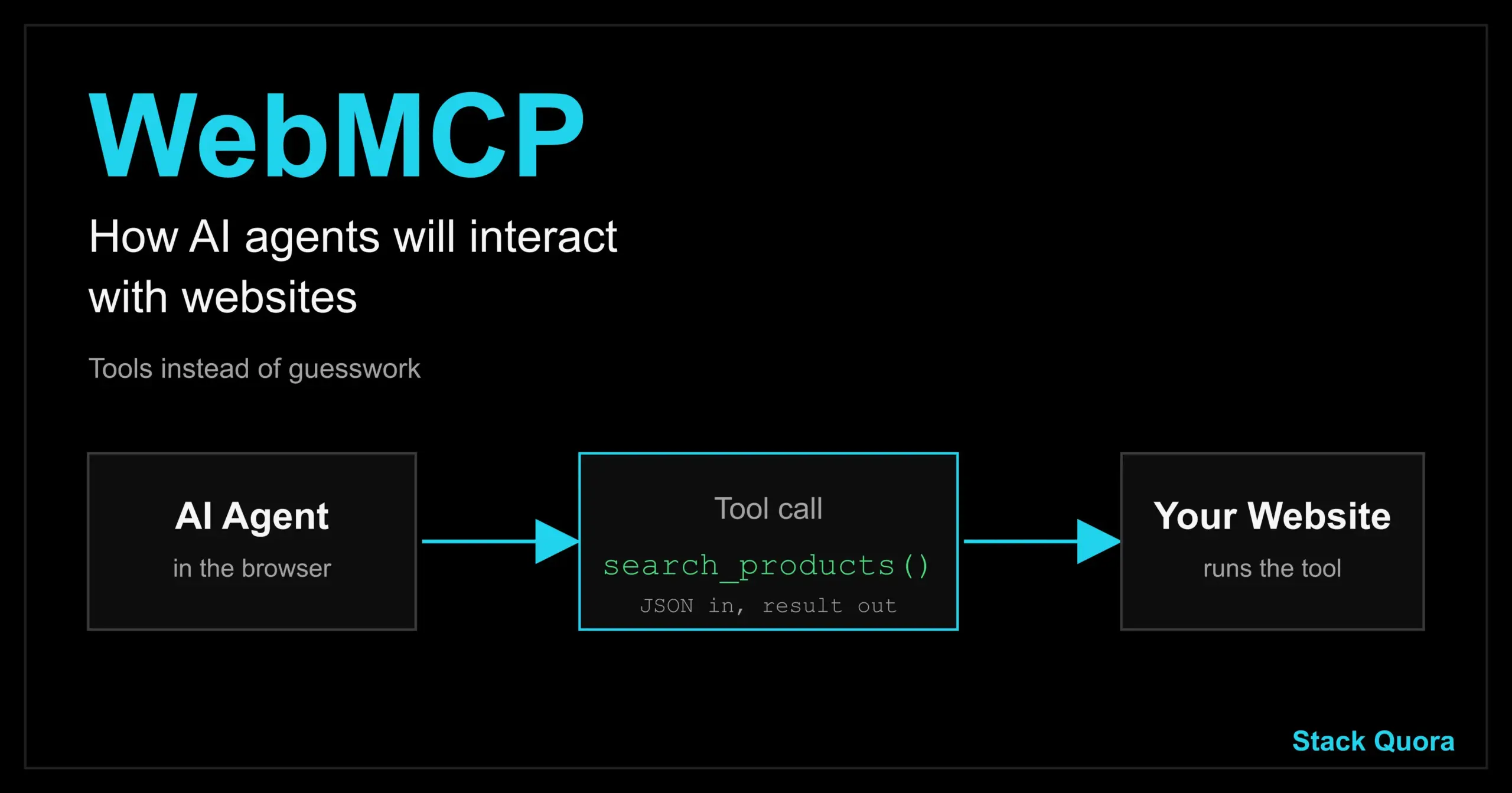
WebMCP explained in one line: it is a proposed browser standard that lets a website publish a list of tools, like search_products or book_table, so an AI agent can call them directly instead of guessing its way around the screen. The website gives the agent a map.
This guide covers what WebMCP is, how the two WebMCP APIs work, real code examples, how it compares with MCP and browser automation, and the security risks you need to know about. It also tells you honestly where things stand today, because WebMCP is still experimental and the details have already changed more than once this year.
WebMCP at a Glance
Here are the key facts as of October 2026, so you can see the full picture before the details.
- What it is: a proposed web standard that lets a page register tools for AI agents that run in the browser.
- Who builds it: engineers from Google and Microsoft, through the W3C Web Machine Learning Community Group.
- Status: a Community Group draft. It is not a finished web standard yet.
- Chrome: a WebMCP origin trial runs in Chrome 149 and later. There is also a Chrome flag for local testing.
- Two APIs: a Declarative API (HTML attributes on forms) and an Imperative API (JavaScript).
- Main entry point:
document.modelContext. The oldernavigator.modelContextspelling is deprecated. - Not a replacement for MCP. The two are built for different jobs and work well together.
What Is WebMCP?
WebMCP lets a website tell an AI agent exactly what it can do. Instead of the agent studying buttons and fields, the page publishes named tools with clear descriptions and clear inputs. The agent reads that list and calls the right tool.
The name stands for Web Model Context Protocol. It is inspired by MCP, the protocol that connects AI apps to outside tools and data. But WebMCP is not a copy of MCP. It is a set of browser APIs built for the web page and for the agent that lives in the browser. You can read Chrome’s own overview in the WebMCP documentation on Chrome for Developers.
WebMCP Explained in Simple Terms
Think about calling a restaurant to book a table. You can describe what you want to a person, and they handle it. Now imagine you had to walk in, look at the room, and work out by yourself where to stand and who to talk to. That second case is how most AI agents use websites today.
WebMCP is the phone call. The website says, “Here is what I can do for you. Tell me the date and the number of guests, and I will book it.” The agent does not need to hunt for the right button. It just asks.
Why WebMCP Was Created
Websites are built for people. They use layouts, icons, menus, pop-ups and date pickers. A human understands these without thinking. An AI agent has to work them out from raw page code or from screenshots, and that is slow, costly and easy to get wrong.
At the same time, more and more people are using AI to browse, compare and buy. More sites are also being built quickly with help from AI, a trend we cover in our guide to vibe coding. Site owners now need a clean way to say, “Agents are welcome here, and this is the safe way to use my site.” WebMCP is one answer to that need.
What Problem Does WebMCP Solve?
It solves the guessing problem. When an agent has to scrape a page or look at pixels, every step is open to a mistake. It might click the wrong button, fill the wrong field, or break when the site gets a new design.
Chrome’s documentation puts the idea simply: the website declares what an element is for, so the agent does not have to figure it out. WebMCP gives agents three things:
- Discovery. A standard way to find which tools a page offers, such as
checkoutorfilter_results. - Clear inputs and outputs. Tools use JSON Schema, so the agent knows exactly what to send and has less room to misunderstand.
- Shared state. The agent knows what is on the page right now, so it can act on real, current information.
WebMCP and the Agentic Web
The “agentic web” is the idea that a growing share of web visits will be made by AI agents acting for people, not by people clicking by hand. Think of an agent that compares three flights, fills in your passenger details and waits for you to confirm the payment.
For that to work well, websites need a shared, predictable way to talk to agents. WebMCP is one of the first serious attempts to build that layer directly into the browser. It keeps the human in view too. Tools run on the visible page, so the person can watch what the agent is doing.
How Does WebMCP Work?
The idea is easy to follow. A page registers tools. The browser keeps track of them. An AI agent in the browser can ask what is available, pick one, and run it.
Structured Tools for AI Agents
Every WebMCP tool has a few parts:
- A name, like
search_products. - A description that says what the tool does and when to use it.
- An input schema that lists the inputs the tool accepts.
- A function that does the work and returns a result.
That is almost the same shape as a function in code, which is why agents handle tools well. A clear tool is much easier for a model to use correctly than a vague button labeled “Go.”
WebMCP Tool Discovery
Tools only exist while the page is open. When a user visits your site, your code registers the tools. When they leave, the tools are gone. This is different from a normal API that always sits on a server.
An agent in the browser, or a browser extension, can call document.modelContext.getTools() to see the tools the current page allows it to use. The browser can also fire a toolchange event when the list changes. That matters in single-page apps, where tools often come and go as the screen changes.
How an AI Agent Calls a WebMCP Tool
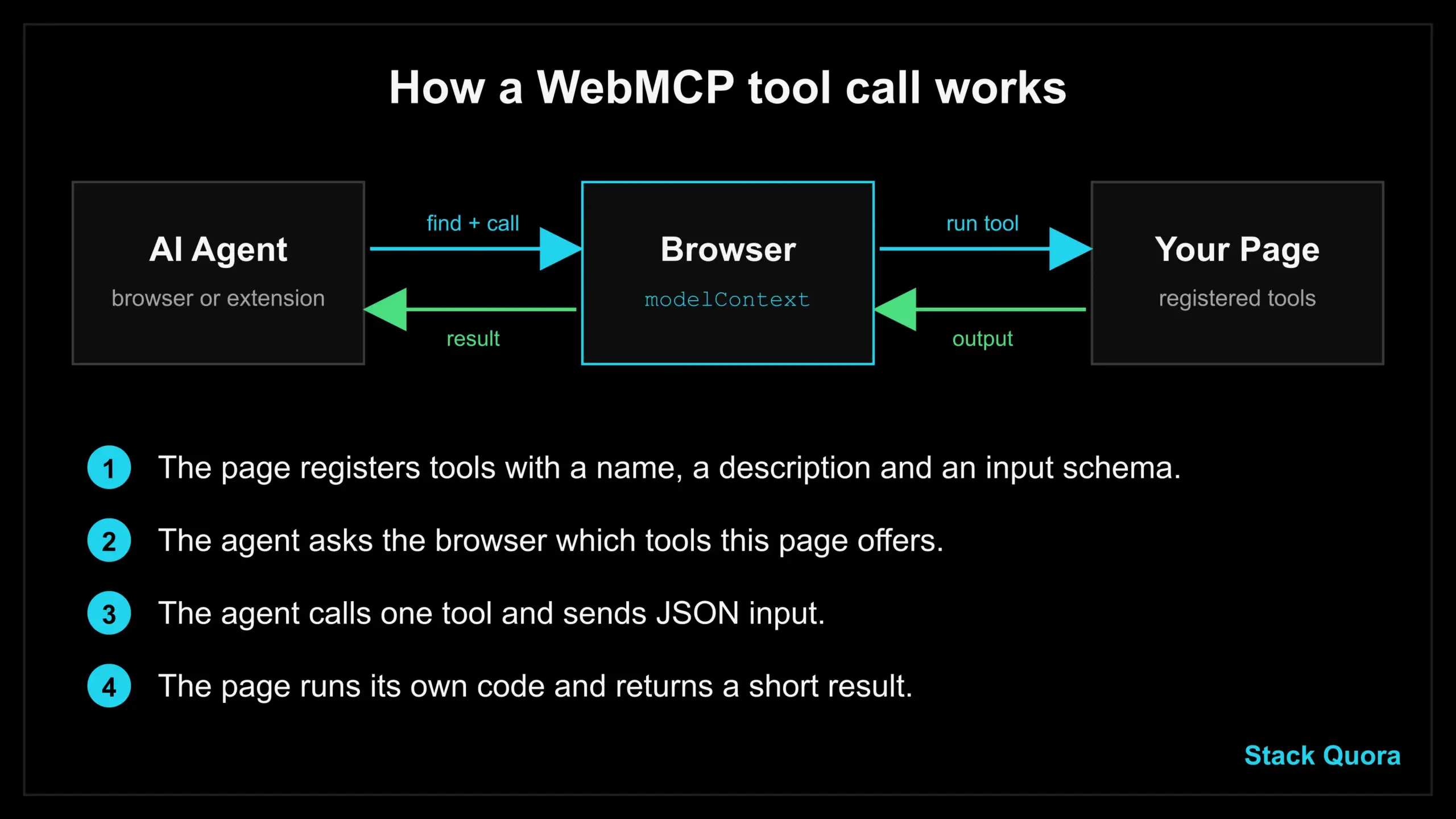
Here is the full flow, step by step:
- The user opens your website in a WebMCP-enabled browser.
- Your page registers its tools.
- The user asks their agent for help, for example “find me a blue jacket under $80.”
- The agent looks at the tools on the page and picks
search_products. - The agent sends JSON input, such as the keyword and the max price.
- Your page runs the tool’s code and returns a short result.
- The agent reads the result and continues with the task or shows the user what it found.
The graphic below shows the same flow.
Chrome’s documentation also describes this as “actuation,” meaning the agent acting on a site the way a human would. WebMCP makes that action less of a guess and more of a direct call.
WebMCP Declarative API
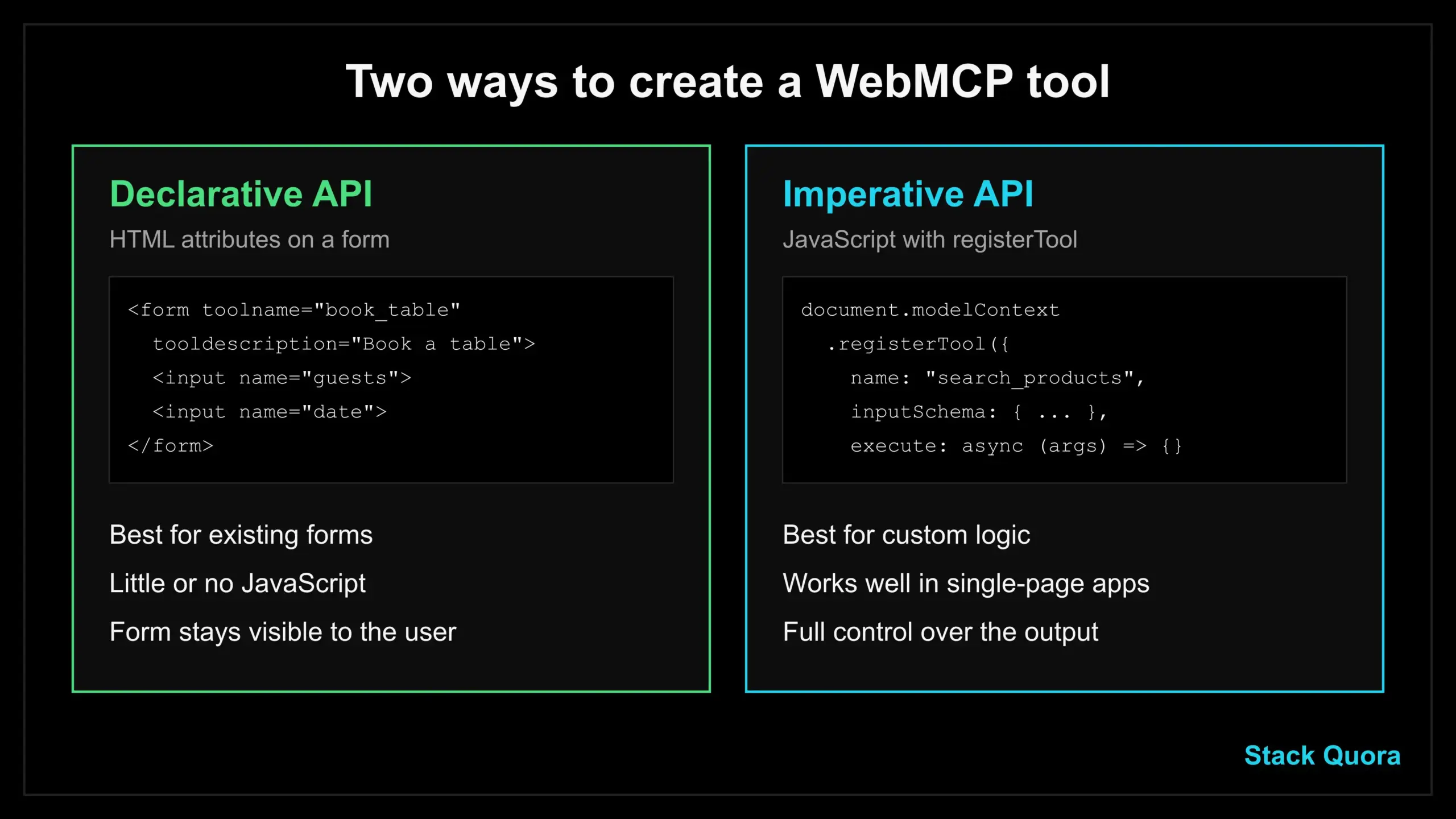
There are two ways to build tools. The Declarative API is the lighter one, and it is where most sites should begin.
What Is the Declarative API?
The Declarative API turns a normal HTML form into a tool by adding a few attributes. The form’s name and purpose describe the tool, and the form fields become the tool’s inputs. No extra JavaScript is needed to get started. The full reference is in Chrome’s Declarative API documentation.
HTML Forms and WebMCP
Here is an original example. It is a table-booking form that has become a tool:
<form toolname="book_table"
      tooldescription="Book a restaurant table for a given date and number of guests."
      action="/reservations">

  <label for="guests">Number of guests</label>
  <input id="guests" name="guests" type="number" min="1" max="12" required>

  <label for="date">Date</label>
  <input id="date" name="date" type="date" required>

  <select name="time" required
          toolparamdescription="Preferred seating time for the booking.">
    <option value="18:00">6:00 PM</option>
    <option value="19:30">7:30 PM</option>
    <option value="21:00">9:00 PM</option>
  </select>

  <button type="submit">Book table</button>
</form>
Here is what each new attribute does:
toolnamegives the tool its name.tooldescriptionexplains what the tool does.toolparamdescriptionis optional. It describes a single field. If you leave it out, the browser falls back to the field’s label.
If you remove toolname or tooldescription, the tool is unregistered. When an agent calls the tool, the browser brings the form into focus and fills in the fields. The form stays visible, so the user can see what the agent did.
By default, the user still has to press the submit button. If you add the toolautosubmit attribute, the form submits when the agent calls the tool. Only use that for safe actions. A booking or a payment should usually wait for a person.
You can also react in JavaScript. A submit event has an agentInvoked property that tells you if an agent triggered it, and respondWith() lets you return a clear result to the agent:
const form = document.querySelector("form[toolname='book_table']");

form.addEventListener("submit", (event) => {
  if (!event.agentInvoked) return; // normal human submit, do nothing special

  event.preventDefault();
  // run your own validation and booking logic here
  event.respondWith(Promise.resolve("Table requested. Waiting for user to confirm."));
});
Chrome also adds CSS pseudo-classes, :tool-form-active and :tool-submit-active, so you can style a form while an agent is using it. A visible highlight helps people trust what is happening.
When to Use the Declarative API
Use it when your site already has solid HTML forms: search, contact, support requests, bookings, sign-ups. It takes a few minutes to add, it stays close to your existing page, and the form remains the single source of truth for humans and agents.
Pick the Imperative API instead if the action is not a form, or if you need custom logic that a form can’t express.
WebMCP Imperative API
What Is the Imperative API?
The Imperative API lets you create tools with plain JavaScript. It suits actions that are not tied to a form, like filtering a list, opening a section, adding an item to a cart, or running a calculation. You need basic JavaScript for this, and our JavaScript tutorial covers what you need. The official guide is Chrome’s Imperative API documentation.
You register a tool with document.modelContext.registerTool(). Always check that the API exists first, because most browsers do not have it yet.
Creating Tools With JavaScript
Here is an original example for an online store. It is a read-only search tool:
if ("modelContext" in document) {
  await document.modelContext.registerTool({
    name: "search_products",
    description: "Search the store by keyword. Returns up to 5 matching products.",
    inputSchema: {
      type: "object",
      properties: {
        query: { type: "string", description: "Search words, for example 'running shoes'" },
        maxPrice: { type: "number", description: "Highest price in USD" }
      },
      required: ["query"]
    },
    annotations: {
      readOnlyHint: true,
      untrustedContentHint: true
    },
    execute: async ({ query, maxPrice }, { signal }) => {
      const url = new URL("/api/products", location.origin);
      url.searchParams.set("q", query);
      if (maxPrice) url.searchParams.set("max", String(maxPrice));

      const response = await fetch(url, { signal });
      if (!response.ok) return "Search failed. Please try again.";

      const products = await response.json();
      const top = products.slice(0, 5).map(p => `${p.name} - $${p.price}`);
      return top.length ? top.join("\n") : "No products found.";
    }
  });
}
A few things are worth pointing out:
- The second argument of
executeincludes anAbortSignal. Pass it tofetchso work stops if the user or agent cancels. - The
annotationsare hints for agents and browsers. More on those in the security section. - If a tool should disappear later, pass an
AbortSignalwhen you register it and callabort()on its controller.
Writing in TypeScript? Chrome points to the webmcp-types package on npm for typings, and our TypeScript tutorial helps if you are new to it. React and Angular also have experimental WebMCP support. Treat all of this as early tooling.
A tool that calls your own backend is just a thin wrapper over an API you probably already have. It is still smart to test that backend on its own, and testing that API with Postman is a good habit before you hand it to an agent.
Handling Tool Inputs
The input schema is the most important part of a good tool. WebMCP uses JSON Schema to describe inputs. Keep these tips in mind:
- Use simple types such as
string,numberandboolean. - Use
enumwhen only certain values are allowed, so the agent can’t invent one. - Mark truly needed fields as
required. - Write short, clear descriptions for each parameter.
Chrome suggests staying within these size limits, so agents handle your tools well:
- 500 characters for a tool description
- 150 characters for a parameter description
- 30 characters for a tool or parameter name
- 1,500 characters for one tool output
These numbers are early guidance and may change, but the lesson is lasting: short and clear beats long and clever.
Always validate input on your side as well. An agent is not a trusted caller, and a model can send odd or wrong values.
Returning Tool Results
What your tool returns is what the agent “sees.” Return short, plain text that says what happened and what comes next. A result like “Order 4821 shipped on Monday, arriving Thursday” is far better than a huge raw database dump.
Here is a second example, a lookup that reads from a database on your server. The backend might run a simple SQL query and return only the fields the user is allowed to see:
await document.modelContext.registerTool({
  name: "get_order_status",
  description: "Get the shipping status of one of the signed-in user's orders.",
  inputSchema: {
    type: "object",
    properties: {
      orderId: { type: "string", description: "Order number, for example 4821" }
    },
    required: ["orderId"]
  },
  annotations: { readOnlyHint: true },
  execute: async ({ orderId }, { signal }) => {
    const res = await fetch(`/api/orders/${encodeURIComponent(orderId)}`, { signal });
    if (res.status === 404) return "No order found with that number.";
    const order = await res.json();
    return `Order ${order.id}: ${order.status}. Expected delivery: ${order.eta}.`;
  }
});
Notice that the server still checks that the signed-in user owns that order. WebMCP does not replace your normal security checks. It only gives the agent a clearer door.
For actions with real-world effects, mark the tool with consequentialHint: true, as in this booking example:
await document.modelContext.registerTool({
  name: "confirm_booking",
  description: "Confirm and pay for the selected booking.",
  inputSchema: { type: "object", properties: { bookingId: { type: "string" } }, required: ["bookingId"] },
  annotations: { consequentialHint: true },
  execute: async ({ bookingId }) => {
    // ask the user to confirm in your own UI before charging anything
    return await confirmWithUserAndPay(bookingId);
  }
});
WebMCP Tutorial: Try It in Chrome, Step by Step
You can try WebMCP in about ten minutes. This section is the practical WebMCP tutorial.
- Use a recent Chrome. The origin trial starts in Chrome 149.
- Turn on the testing flag. Open
chrome://flags/#enable-webmcp-testing, set it to Enabled, and relaunch Chrome. - Serve your page over HTTPS or localhost. The API needs a secure context.
- Add a tool. Paste the
search_productscode above into a test page, or add thetoolnameandtooldescriptionattributes to a simple form. Swap in your own endpoint. - Install the inspector. The Model Context Tool Inspector extension shows which tools are registered on a page, lets you run them by hand, and lets you chat with a test agent.
- Check the results. Look at the tool list, run a tool with sample input, and read the output exactly as an agent would.
- Break it on purpose. Send a wrong input and see what your tool returns. Clear error messages make agents recover better.
A few more tips:
- Keep your tool definitions in version control like any other code. If you need a refresher, see our Git tutorial.
- When your tools are stable, add a check to your pipeline. Our GitHub Actions guide shows how to run tests on every push.
- Chrome Labs also publishes working WebMCP demo projects, including a pizza maker built with the Imperative API and a bistro site built with the Declarative API. They are the best way to see real, complete code.
WebMCP Chrome and the Origin Trial
An origin trial lets developers turn on an experimental feature for real users on their own domain for a limited time. You register for the WebMCP origin trial, get a token, and follow the instructions on that page. For local work, the flag above is easier.
Because this is a trial, the API can change. It already has. Early demos used navigator.modelContext and a provideContext method. Today, document.modelContext is the main entry point, and the old spelling is deprecated. Chrome’s own pages also note smaller changes, such as JSON-string tool inputs being deprecated from Chrome 155. Always check the latest Chrome WebMCP documentation before you copy code from any article, including this one.
WebMCP vs MCP
This is the question most developers ask first. The short answer: WebMCP does not replace MCP. Chrome’s team says this directly in its guide on when to use WebMCP and MCP.
What Is MCP?
MCP is the Model Context Protocol, an open standard that connects AI apps to outside data, tools and workflows. You can read more at modelcontextprotocol.io. An MCP server is a program that exposes tools to an AI app. Most servers are written in languages like Python or TypeScript, so if you want to build one, our Python tutorial is a good first step.
What Is WebMCP?
WebMCP is the browser-side idea. It only works through a browser’s built-in agent while a user has your page open. It is a set of “MCP-inspired” APIs, not a direct JavaScript copy of MCP. For example, it leaves out server-side ideas such as resources.
Key Differences Between MCP and WebMCP
Here are the differences, in plain terms:
- Where it lives. MCP runs on a server, sometimes inside a Docker container. WebMCP runs in the browser tab.
- How long it lasts. An MCP server stays up all the time. WebMCP tools exist only while the page is open.
- Where agents can use it. MCP works for desktop apps, mobile apps, cloud agents and browser agents. WebMCP works for agents inside a browser.
- UI. MCP is headless, with no page involved. WebMCP works with the live page, the user’s session and the visible interface.
- Who is in charge. With an MCP app, your interface appears inside the agent’s interface. With WebMCP, the agent comes to your site.
Chrome uses a helpful picture here: MCP is like a company’s call center, available anytime from anywhere. WebMCP is like an expert standing in your store, helping the person who is there right now.
When Should You Use MCP, and When WebMCP?
Use MCP for core logic and data that should be available to agents everywhere, even when no browser is open. Think background jobs, data lookups and actions that don’t need your page.
Use WebMCP for things that make sense only on your live site: filling a complex form, using a filter, working with the logged-in session, or moving through your UI.
Many products will use both. MCP handles the foundation, and WebMCP adds a smooth experience when the user is on the site.
WebMCP vs Browser Automation
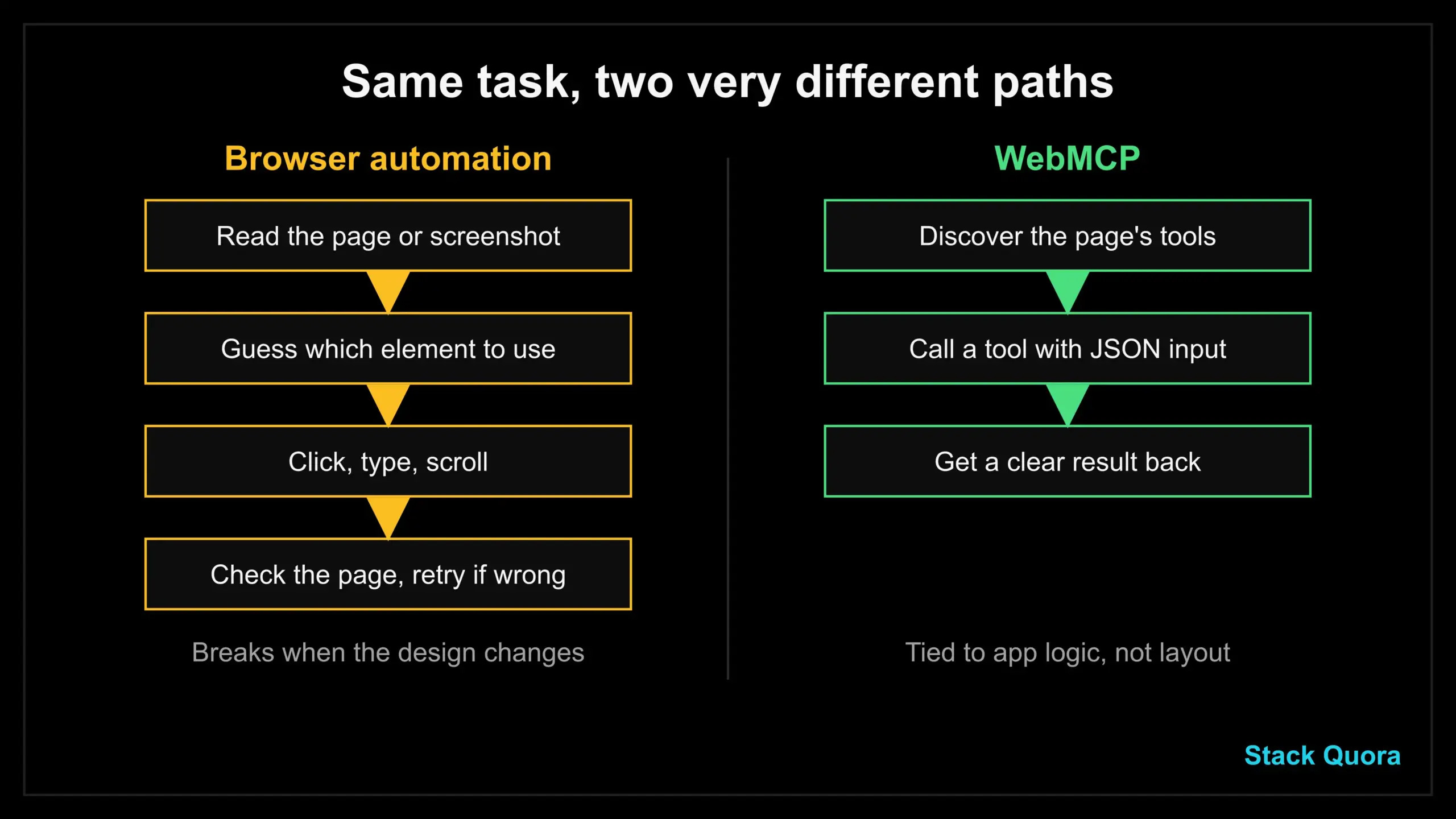
Browser automation tools drive a real browser by clicking, typing and reading the page. They are great, and they are not going away. But they solve a different problem from WebMCP.
WebMCP vs Playwright
Playwright controls a browser from the outside. It finds elements with selectors and performs clicks, typing and checks. It is the standard choice for end-to-end testing. If you want to see how AI plugs into that world, read our guide to Playwright MCP.
WebMCP works from the inside, with the site’s cooperation. The site chooses which actions to expose and how. So WebMCP is about letting agents use your product, while Playwright is mostly about testing it. They can even work together: you can use browser automation to test that your WebMCP tools are registered and behave properly.
WebMCP vs Selenium
The comparison with Selenium is the same. Selenium drives browsers through the WebDriver protocol. It is mature and widely used for testing. It does not know what your page is “for.” WebMCP does, because you told it.
WebMCP vs Traditional Browser Automation
Here is how the two approaches differ in practice:
- Reliability. Selector-based and screenshot-based agents can break when a layout or label changes. WebMCP tools are tied to your app logic, not your design, so a redesign need not break them.
- Speed. One tool call can replace many clicks and page reads.
- Cooperation. Browser automation works on any site, even without permission from the site. WebMCP only works where the site owner has added tools.
- Coverage. Browser automation works everywhere today. WebMCP works only on sites that opt in, and only in browsers that support it.
This is why many people expect a mix. Agents will use WebMCP tools when a site offers them and fall back to clicking and reading when it does not. If you want the bigger picture of where testing is heading, see how AI agents are changing QA.
Which Approach Should Developers Choose?
- Testing your own app: keep using Playwright or Selenium.
- Letting AI agents use your own site well: add WebMCP tools to the key tasks.
- Working with sites you do not control: browser automation is still your only option.
WebMCP Use Cases
Chrome’s documentation lists support flows and travel booking as early examples. Here are practical ways the idea can be used.
AI Shopping Agents
A store can offer tools such as search_products, add_to_cart and apply_coupon. The agent searches, compares and fills the cart. The final checkout tool would carry the consequentialHint, so the user must approve it. If your search is backed by a vector database, the tool can return better matches than a plain keyword search.
AI Form-Filling Agents
Long forms are where agents often fail. A tool like submit_application can map the details the agent already knows from the chat to the right fields. For example, it can tell the difference between a single “full name” field and separate first and last name fields.
AI Customer Service
Support pages often hide the right form behind several menus. A tool such as create_support_request can take the agent straight there and pre-fill the details the user already gave. Chrome lists this as one of its main example scenarios.
AI Productivity Tools
Dashboards, project boards and admin panels have many controls. Tools such as filter_tasks, create_report or run_diagnostics can save a person many clicks, with the agent handling the repetitive parts.
WebMCP Security
Giving an agent real tools on a real website is powerful, and it needs care. Chrome has published early guidance in its WebMCP tool security guide. Here are the main ideas.
Prompt Injection Risks
Language models read instructions and data as one stream of text. That means a malicious instruction hidden inside content can trick an agent into doing something the user never asked for. This is called indirect prompt injection. Chrome is open about the fact that no model can be guaranteed safe, because models work on probabilities.
So plan as if an agent could be fooled. Do not rely on the model alone to keep your users safe.
Untrusted Tool Output
If a tool returns content that someone else wrote, such as reviews, comments or messages, that text could contain hidden instructions. Mark those tools with untrustedContentHint: true, so the agent knows to treat the output with extra care. Keep outputs short and structured, and avoid passing raw user text back wherever you can.
Chrome lists three annotation hints worth using:
readOnlyHintfor tools that only read information.untrustedContentHintfor tools that return user-written or outside data.consequentialHintfor actions that are hard to undo, like payments, bookings or deleting data. This lets the agent or browser ask the user to confirm first.
Protecting User Data
- Expose carefully. By default, other sites and cross-origin iframes can’t see your tools. Only use the
exposedTooption for origins you really trust. - Check permissions on the server. Never assume a tool call is allowed just because it came from the user’s own browser.
- Return the minimum. Send only the fields the task needs.
- Ask before big actions. Show a confirmation in your own UI for anything involving money, deletion or private data.
- Be careful with iframes. Tool registration is off by default in cross-origin iframes, and you need the
toolspermissions policy to allow it.
Limitations of WebMCP
WebMCP is exciting, and it is also early. Here is the honest picture.
Experimental Technology and Browser Support
WebMCP is a W3C Community Group draft, not an official web standard. In Chrome it is an origin trial from version 149, with a flag for local testing. Microsoft co-develops the spec, but check Edge’s own release notes for the current state. Firefox and Safari have not announced shipping plans. You can follow the feature on Chrome Platform Status and the spec discussion in the WebMCP explainer on GitHub.
The API has also changed a lot during the trial. If you build on it today, expect to update your code.
Chrome also lists some design limits:
- Human in the loop. WebMCP is designed mainly for local browser use where a person is present, not for headless background agents.
- Extra work for complex apps. If your interface is very complex, you may need to refactor to manage state cleanly.
- Discoverability. An agent has to visit the page to learn what tools it has. There is no global directory of WebMCP sites.
Agent Compatibility
A tool is only useful if an agent calls it. The set of agents that read WebMCP tools is still small and growing. Chrome’s own test extension uses a Gemini model by default, and extensions can also query tools. Expect support to grow, but do not assume every AI product will use your tools yet.
The practical advice: treat WebMCP as a progressive enhancement. Your site must work perfectly without it. Add tools for your two or three most valuable tasks, test them, and keep your code easy to change.
The Future of WebMCP
Nobody can promise exactly how this will unfold, but the direction is clear.
AI browsers. As browsers add built-in agents, they need a clean way to talk to sites. WebMCP gives them a standard way to do that, instead of every agent inventing its own scraping tricks.
Agentic commerce. Searching, comparing and buying through an agent is an obvious target. Sites that offer clear tools, with proper confirmation steps, may be easier for agents to work with than sites that don’t.
The future of websites. A site might soon have two audiences: people who read the screen and agents that read the tools. Good teams will design for both, the same way they already design for mobile and accessibility.
Standards take time, and the path from a Community Group draft to a settled web standard can be long. The smart move is to learn the basics now, experiment on a small scale, and watch the spec.
Final Thoughts
WebMCP is an attempt to fix a simple problem. Websites were made for human eyes, and AI agents are now trying to use them anyway. Instead of letting agents guess, WebMCP lets the site speak first and say exactly what it can do.
You do not need to rebuild anything today. Learn the two APIs, try the Chrome flag, and add one safe, read-only tool to a test page. Watch how the spec changes, and keep security at the front of every design choice.
If agents do become a normal way to use the web, the sites that explained themselves clearly will be the easiest ones to use. That is what WebMCP is for.
Found this useful? Explore more AI, testing and development guides on StackQuora, and bookmark this page for the next time the WebMCP spec changes.
Frequently Asked Questions About WebMCP
What is WebMCP?
WebMCP is a proposed web standard that lets a website register tools that AI agents in the browser can discover and call directly. It uses JavaScript or HTML attributes, so the agent does not need to guess how to use the page.
Is WebMCP the same as MCP?
No. MCP is a general protocol that connects AI apps to outside tools and data, usually through a server. WebMCP is a set of browser APIs for tools that live on a web page and only work while that page is open. They are designed to work together.
Is WebMCP available in Chrome?
Yes, in a limited way. WebMCP is available as an origin trial from Chrome 149, and there is a flag at chrome://flags/#enable-webmcp-testing for local development. It is not a normal, always-on feature for all users yet.
Is WebMCP production ready?
Not yet. It is experimental, the API has changed during the trial, and Chrome says it is subject to change. It is fine for experiments and small progressive enhancements, but be ready to update your code.
Can WebMCP replace Playwright?
No. Playwright and Selenium are testing and automation tools that work on any site. WebMCP only works where a site adds tools. You may even use Playwright to test your WebMCP tools.
Can WebMCP replace APIs?
No. A WebMCP tool often calls your existing backend API. WebMCP is the way an agent reaches an action inside the live page, while your API still does the real work on the server. If you have an API, keep it, secure it and test it, for example by testing that API with Postman.
What are the two WebMCP APIs?
The Declarative API turns HTML forms into tools with attributes like toolname and tooldescription. The Imperative API lets you register tools in JavaScript with registerTool().
Does WebMCP work in Firefox and Safari?
Not at the moment. Mozilla and Apple have not announced plans to ship it. Because of that, your site should always work without WebMCP.
How do I try WebMCP?
Use a recent Chrome, turn on the testing flag, add a tool to a test page, and use the Model Context Tool Inspector extension to see and run your tools. The step-by-step section above walks through it.
Is WebMCP safe?
It can be used safely, but it is not safe by default. Prompt injection is a real risk. Use the annotation hints, validate every input on the server, expose tools only to trusted origins, and ask the user before any big action.
Do I need WebMCP for my website?
No. It is optional. Consider it if your site has valuable tasks, like booking, search or support requests, that people may want an agent to do for them. Start small.
What is the difference between WebMCP and browser automation?
Browser automation clicks and reads the page from outside, often by guessing. WebMCP lets the site publish tools, so the agent calls them directly. Automation works on any site, while WebMCP works only on sites that opt in.